How Does Multi-Screen IPTV Work?
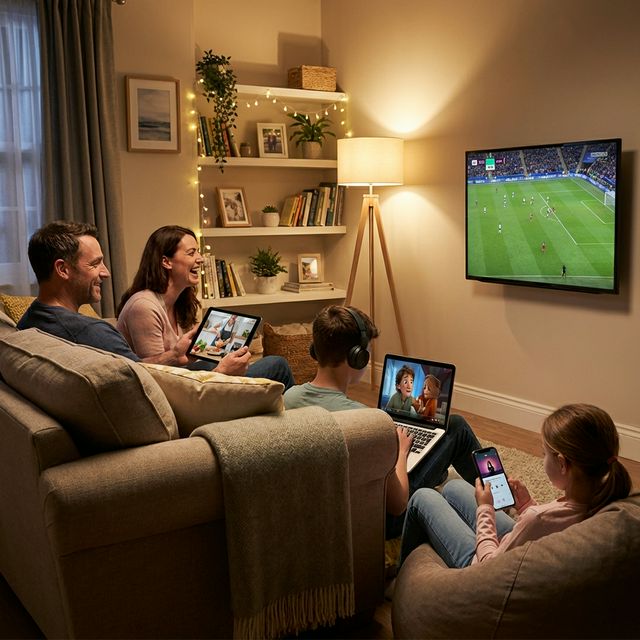
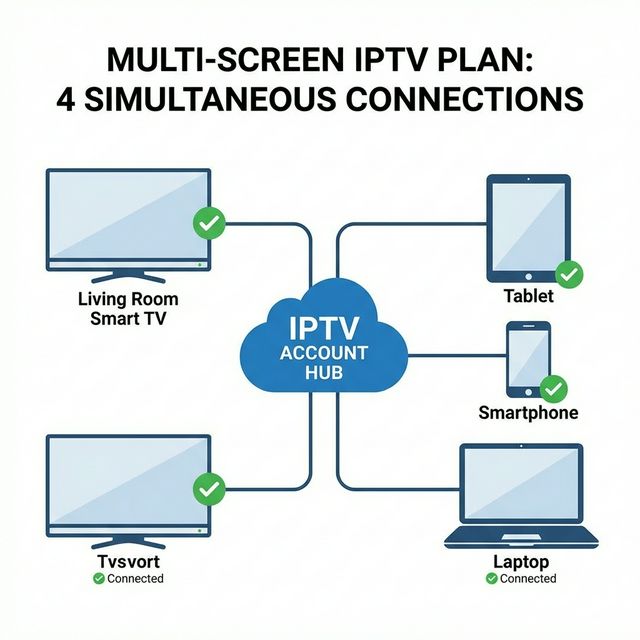
Multi-screen IPTV (or multi-connection) lets you use a single subscription on several devices at the same time. Each device receives a distinct stream — dad can follow Sky Sports on the living room TV while the children watch Disney Channel on the tablet.
The number of simultaneous connections depends on your subscription plan. Unlike cable or satellite, which require a decoder per TV (~£150 each), IPTV runs on all your existing devices: Smart TV, smartphone, tablet, PC, Fire Stick...
Fonctionnement technique :
- 1. Your IPTV subscription allows N simultaneous connections (depending on the plan)
- 2. Each device connects to the IPTV server via the internet
- 3. Each stream is independent — channel and quality can differ
- 4. Your router shares the bandwidth between the devices
Which Multi-Screen Plan to Choose?
Here are the plans offered and their value for money for family use:
Pack 2 Screens
£6.66/month
£79.99 les 12 months
- 2 connexions simultaneouss
- 36 000+ channels
- 4K HDR available
- 80 000+ VOD
Perfect: couple, 2 rooms
Pack 3 Screens
£8.33/month
£99.99 les 12 months
- 3 connexions simultaneouss
- 36 000+ channels
- 4K HDR available
- 80 000+ VOD
Perfect: family, 3 rooms
Pack 4 Screens
£9.99/month
£119.99 les 12 months
- 4 connexions simultaneouss
- 36 000+ channels
- 4K HDR on all screens
- 80 000+ VOD
- Control parental
£2.50/screen — imbattable !
By way of comparison, Netflix Premium (4 screens) costs £19.99/month for ~1,500 titles. The IPTV 4-Screen Pack comes to £9.99/month (£119.99 for 12 months) for 36,000+ live channels + 80,000+ VOD in 4K. The difference is enormous.
Compatible Devices for Each Member of the Household
One of the great strengths of IPTV is its universal compatibility. Each member of the family can use the device of their choice:
In the living room — Smart TV
Samsung, LG, Sony, Philips, Hisense, TCL. Native IPTV Smarters Pro or TiviMate apps. Ideal for the family living room in 4K HDR on a big screen.
In the bedroom — Fire TV Stick
Amazon Fire TV Stick 4K Max (~£60). Plugs directly into HDMI on any TV. Set up in 5 minutes. Perfect for bedrooms. Consult the installation guide for Fire Stick.
On the move — Smartphone
iPhone, iPad, Android smartphone and tablet. IPTV Smarters Pro or GSE Smart IPTV apps. Watch on the train, in the car (passenger!) or on holiday.
At the desk — PC/Mac
VLC Media Player (free) or IPTV Smarters Pro for Windows. Perfect for teenagers in their bedroom or parents working from home. See our guide for PC/Mac.
Setting Up Multi-Screen in 4 Steps
Select a multi-screen plan
Passez par our subscriptions page and choose the Duo plan (2 screens) or Family plan (4 screens). After payment, you receive your connection credentials by email.
Install the app on each of the devices
Install IPTV Smarters Pro or TiviMate on each device. The app is available on Google Play, the App Store, the Amazon Appstore and as an APK sideload. Consult our tutoriels d'installation par device.
Log in with identical credentials
Use the same login/password or the same M3U/Xtream Codes link on all your devices. The server automatically allows the number of simultaneous connections of your plan.
Set up profiles and parental controls
In TiviMate or IPTV Smarters Pro, create separate profiles (Dad, Mum, Kids). Enable the PIN code on adult content. Personalise the favourites per profile so everyone quickly finds their channels.
Parental Controls: Protecting Your Children
Family use of IPTV calls for effective parental controls. Here are the options available:
Locking via PIN code
TiviMate and IPTV Smarters Pro let you lock adult categories with a 4-digit PIN code. Locked channels disappear from the electronic guide (EPG) until the code is entered.
Profils enfants
Create a profile reserved for children with only suitable channels: Gulli, Disney Channel, Cartoon Network, Nickelodeon, Boomerang, BabyTV. Children only have access to the channels you have selected in their profile.
Limited time slots
Some apps let you set access time slots. Combined with the parental controls of the Fire Stick or Android TV (Google Family Link), this lets you limit daily screen time.
Optimising Your Network for Multi-Screen
Several simultaneous IPTV streams require good bandwidth management. Here are our tips:
Fibre recommended
100 Mbps+ for 4 HD screens, 200 Mbps+ for multi-screen 4K
Ethernet for the main television
RJ45 cable for the living room 4K TV, WiFi for the rest
5 GHz WiFi or Mesh network
Connect all devices at 5 GHz, never at 2.4 GHz
QoS at router level
Give priority to IPTV traffic in the Quality of Service settings
For a detailed guide on optimising your connection, read our article on the internet speed required for IPTV.
Frequently Asked Questions — Multi-Screen Family IPTV
How many simultaneous screens?
Which devices are supported?
Is fibre necessary for multi-screen?
Is there parental control?
What is the price of the family plan?
The Whole Family Watches — 4 Simultaneous Screens
4 screens • 36,000 channels • 4K HDR • Parental controls • No automatic renewal
Discover the Family PlanHow many screens do you really need?
This is the question that determines your plan, and the answer is rarely "as many as there are people in the household". What matters is not the number of residents but the number of programmes different watched at the same time.
2 screens
— Couple, or single parent with one childThe most common case. One screen in the living room, a second in the bedroom or on a tablet. Enough for the vast majority of two- to three-person households who often watch together.
3 screens
— Family with one or two childrenThe sweet spot: parents in the living room, one child on a tablet, and room for an occasional third use without conflict.
4 screens
— Family with teenagersTeenagers each watch on their own device and at staggered times. It is also the plan tailored for sports multiplex evenings.
5 screens
— Large family or house shareBeyond four regular simultaneous uses, this is the format that avoids blockages. Also useful if a household member lives elsewhere part of the week.
A tip: do not overestimate your needs. In most households, uses overlap less than you might think — children watch in the afternoon, parents in the evening. Start with the 2- or 3-screen plan, you will very quickly see whether it is enough. The prices are detailed on the our subscriptions.
Simultaneous screens or installed devices: the misunderstanding to avoid
This is the most common misunderstanding, and it regularly leads people to pay for an oversized plan. The number of screens on your subscription does not limit pas the number of devices on which you install the app.
Unlimited
Installing the app with your credentials on the living room television, the bedroom one, two phones, a tablet and a laptop. No limit, no extra cost.
Capped by the plan
The quantity of active playbacks at the same time. With 2 screens, two streams can run; the third receives an error message until a playback is freed up.
A technical trap worth knowing: an app put to sleep but not closed can continue to occupy a connection for several minutes. If a household member is refused access when the quota should be free, have the app fully closed on the other devices — not just the screen turned off. How the credentials work is detailed in our Xtream Codes and M3U guide.
What speed for several simultaneous streams?
This is the constraint that is systematically forgotten when switching to multi-screen: each stream consumes its own bandwidth, and the needs add up. A connection that handles a single 4K stream perfectly can collapse as soon as the second one starts.
| Usage simultaneous | Full HD | 4K |
|---|---|---|
| 1 screen | 10-15 Mbps | 25 Mbps |
| 2 screens | 25 Mbps | 50 Mbps |
| 3 screens | 40 Mbps | 75 Mbps |
| 4-5 screens | 60 Mbps | 100 Mbps — fibre essential |
These figures assume that nothing else is using the connection. Yet, in a real household, a console downloading an update or a cloud backup starting up mobilises more than enough to bring down a 4K stream. It is the most frequent cause of "unexplained" dropouts in the evening.
Two habits are enough: connect the main screen via Ethernet to ensure a stable throughput, and reserve 5 GHz Wi-Fi for mobile devices. If your connection is limited, forcing the quality to Full HD on the secondary screens immediately frees up headroom. The detail of the real needs is in our guide internet speed for IPTV.
Equipping every room without replacing everything
Multiplying screens does not mean multiplying spending. Here is what really works room by room, with the corresponding budget.
Salon
The main screen deserves the best device: a Fire TV Stick 4K Max or an Android TV box, connected via Ethernet. This is where 4K and stability matter most.
Chambre
A secondary television, often older, makes do with a native Smart TV app or an entry-level Fire Stick. Full HD is amply enough there.
Mobility
Phones and tablets need no hardware: the app downloads and configures in two minutes with the same credentials.
Ordinateur
Handy for occasional use or to quickly check that your credentials work, before diagnosing an issue on the TV.
The per-device installation guides are gathered on our pillar Installation IPTV, and the choice of player is covered in the IPTV player comparison. For Samsung and LG Smart TVs, consult the specific native apps.