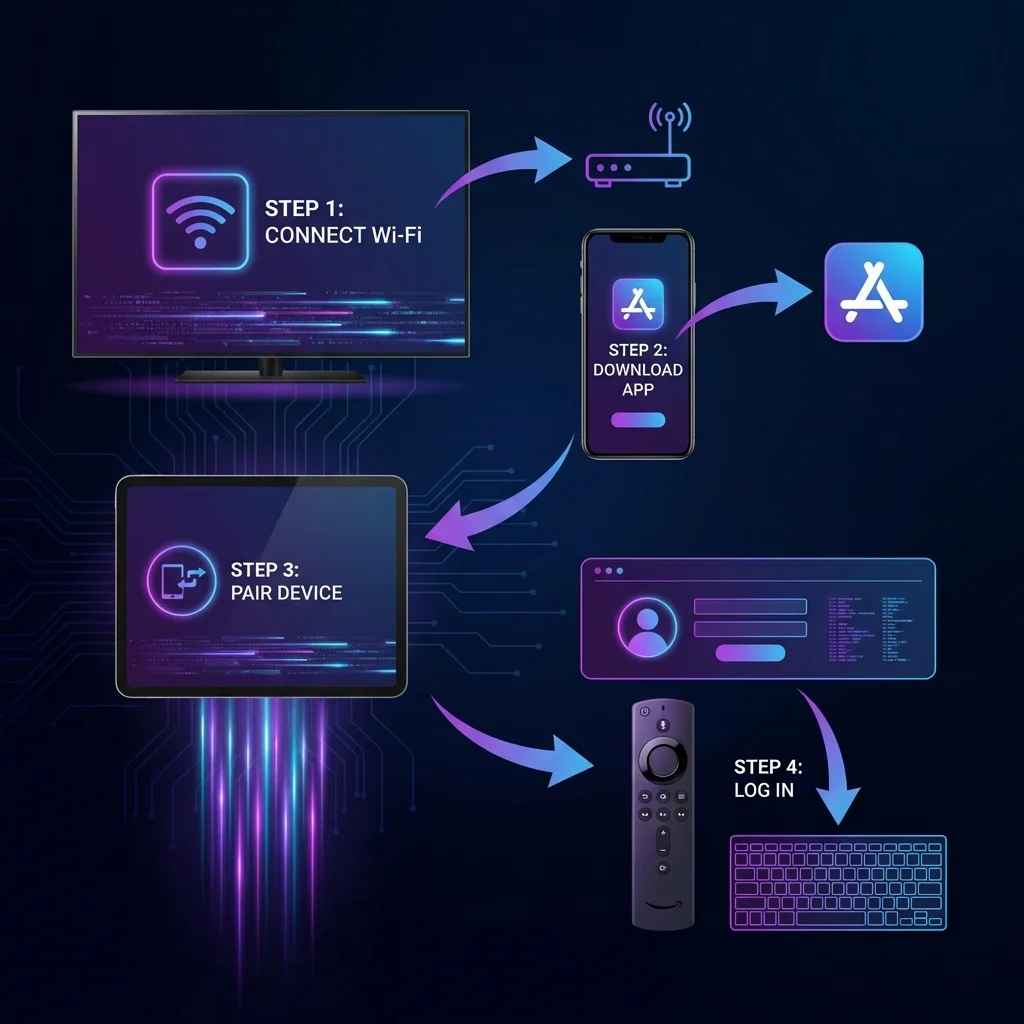
Tutoriels IPTV : Step-by-Step Installation Tutorials
Browse our complete IPTV guides to install and set up your IPTV subscription in the UK on all the most common devices in 2026: Amazon Fire TV Stick, Samsung and LG Smart TVs, Android TV, Nvidia Shield, iPhone, iPad, Android mobiles, Windows and Mac computers.
Each tutorial remains accessible to beginners while delivering sharp tips on the M3U format, the Xtream Codes API, EPG configuration and performance optimisation in HD as well as 4K. Allow less than 5 minutes in most installation cases.
Retour à l'accueil | Ready à commencer ? Choose your plan
IPTV Subscription Plan
IPTV 12 MONTHS Premium
Up and running in 5 min
i.e. only £4.33/month
or start with 1 month at £10.99
Place your order then follow our detailed guides. Setup in 5 minutes on Smart TV, Fire Stick, Android, iPhone and PC.
Recommended IPTV Apps
How to Choose the Right IPTV App in 2026?
The choice of app depends mainly on your device, your technical confidence and your habits. Here is our complete comparison to help you decide in a few minutes which app to install.
| Application | Plateformes | EPG | VOD | Prix | Ideal for |
|---|---|---|---|---|---|
| IPTV Smarters Pro | iOS, Android, Smart TV, Fire TV, PC | Standard | Series and films | Free | General public, multi-device |
| TiviMate Premium | Fire TV, Android TV | Advanced multi-source | Separate dedicated sections | ~£25/an | Recording, advanced users |
| Smart IPTV | Samsung Tizen, LG webOS | Basique | — Limited | 7-day trial then £5 for life | Non-Android Smart TVs |
| SS IPTV / Net IPTV | webOS, Samsung, LG | Basique | — Live uniquement | Free | Free option for Smart TVs |
| VLC Media Player | Mobile, Windows, Mac, Linux | — Aucun EPG | — Lecture basique | Open source and free | M3U playback, quick tests |
| Kodi + PVR IPTV Simple | All systems, including Linux/Raspberry | Very complete | Via add-ons | Free and open source | Central media library, tinkerers |
| OTT Navigator | Fire TV, Android, Android TV | Multi-EPG | VOD built-in | ~£12/an | Alternative à TiviMate |
On smartphone
IPTV Smarters Pro for its simplicity and AirPlay/Chromecast compatibility. GSE Smart IPTV makes a good alternative on iOS.
For Smart TV
IPTV Smarters Lite (Samsung/LG) or Smart IPTV for MAC activation. With built-in Android TV: TiviMate directly.
For Fire Stick
TiviMate Premium for advanced EPG and recording. IPTV Smarters Pro as a free solution, ideal for getting started.
What to Prepare Before Installing Your IPTV
Before following our guides, make sure you have everything you need to get the installation right on the first try, with no blockages or nasty surprises.
A reliable Internet connection
In 2026, allow at least 15 Mbps download for smooth HD, 25 Mbps for 4K UHD and 50 Mbps if several devices are streaming at the same time.
Preferably opt for fibre or a fixed 5G box. On Wi-Fi, stay close to the router or install a mesh repeater to avoid dropouts.
A supported device
Samsung Smart TV 2018+ (Tizen), LG 2017+ (webOS), Android TV / Google TV, Fire TV Stick (Lite, 4K or 4K Max), Nvidia Shield, box Android, MAG, iPhone, iPad, Android smartphone.
Make sure your device has at least 1 GB of free RAM and that its system is fully up to date.
Your IPTV access credentials
Once the order is placed, you receive by email a server URL (Xtream Codes), a username, a password and sometimes a direct M3U link.
Keep this data in a password manager: you will need it each time you add a new device.
An up-to-date IPTV app
Always download the app from an official source (App Store, Google Play, Amazon App Store or official website). Avoid dodgy APKs that may contain malware.
Update the app at least once a month to benefit from security patches and EPG updates.
Our 4 Step-by-Step IPTV Guides
Choose the guide suited to your device. Each one covers the prerequisites, the detailed steps and an expert tip for a hassle-free installation.
Amazon Firestick
Set up IPTV on your Amazon Fire TV Stick in a few easy steps.
The Amazon Fire TV Stick is among the most popular devices for IPTV in the UK: affordable price, portable format and 4K HDR compatibility. Our guide relies on the official method via the Downloader app, with no jailbreak or risky manipulation.
Prerequisites : Fire Stick (4K Max recommended), stable Wi-Fi connection at 25+ Mbps, active Amazon account, IPTV subscription in hand.
Allow unknown sources
Go to Settings > My Fire TV > Developer Options > Apps from Unknown Sources > Enable. This step allows the installation of apps outside the Amazon App Store.
Installer Downloader
From the home screen, search for "Downloader" and install this free app. Open it then allow file access on first launch.
Install the IPTV app
Launch Downloader and enter the URL we will send you by email to get IPTV Smarters Pro or TiviMate. Wait for the download to finish then tap "Install".
Set up with your credentials
Open the app, select "Login with Xtream Codes API", then enter the credentials (server URL, username, password) received by email after your order.
Astuce d'expert : Enable hardware acceleration (Hardware Decoder) in IPTV Smarters Pro to make the most of 4K and limit dropouts.
Smart TV (Samsung/LG)
Direct setup on your Samsung, LG, Sony or other Smart TV.
On Samsung Smart TVs (Tizen OS) and LG (webOS), there is no need for an external box: everything is done via the native apps Smart IPTV, IPTV Smarters Lite or SS IPTV. The fastest configuration is via your TV's MAC address on the app's web portal.
Prerequisites : Samsung Smart TV 2018+ (Tizen) or LG 2017+ (webOS), Internet connection, access to the TV store (Samsung Apps or LG Content Store).
Open the Store
From your TV's home screen, open the app store (Samsung Apps, LG Content Store or Google Play on Android TV).
Install Smart IPTV or IPTV Smarters
Search for "IPTV Smarters Lite", "Smart IPTV", "SS IPTV" or "Net IPTV", then install the free app best suited to your OS.
Lancer l'application
Open the app. A MAC address (in XX:XX:XX:XX:XX:XX format) appears, or a field to enter your Xtream Codes credentials directly.
Enter your credentials
Enter the server URL, your username and your password sent after the order, or add the M3U playlist from the app's web portal.
Astuce d'expert : If the Smart IPTV app has disappeared from your store, installation via USB (sideload) or through the IPTV Smarters Lite app remains perfectly functional in 2026.
TiviMate
The most complete IPTV app, with TV guide and recording.
TiviMate stands out as the reference IPTV app on Android TV and Fire TV Stick for demanding users. Polished interface, very fast EPG (TV guide), scheduled recording, multi-playlists, Chromecast support: the Premium version (~£25/year) unlocks the full potential of your subscription.
Prerequisites : Android TV, Fire TV Stick, Nvidia Shield or Android box, IPTV subscription with Xtream Codes API, and optionally a TiviMate Premium licence.
Installer TiviMate
Get TiviMate from the Google Play Store (Android TV) or via Downloader (Firestick) by entering the official APK URL available at tivimate.com.
Add your playlist
Open TiviMate > Settings > Playlists > Add playlist > Xtream Codes. Xtream mode is better than M3U as it handles categories more precisely.
Set up the connection
Enter the playlist name (e.g. "EzzeTV"), the server URL, your username and your password. TiviMate checks the connection by itself.
Personnaliser l'interface
Explore the settings to organise channel groups, add XMLTV EPG sources, set your favourites, scheduled recording and parental controls.
Astuce d'expert : Enter several EPG URLs (XMLTV) to have a complete 7-day TV guide for BBC One, France TV, Sky Sports, TNT Sports, TNT Sports and international channels.
Smartphone & Tablette
Watch IPTV on your iPhone, iPad or Android device.
On iPhone, iPad and Android, IPTV Smarters Pro remains the simplest solution: available on the App Store and Google Play, entirely free, and compatible with AirPlay and Chromecast to cast to your TV. Setup takes less than two minutes.
Prerequisites : iPhone, iPad, Android smartphone or tablet running iOS 13+ or Android 7+, 4G/5G or Wi-Fi connection, active IPTV subscription.
Download the app
Get "IPTV Smarters Pro" from the App Store (iOS) or the Google Play Store (Android). Accept the required permissions on first launch.
Select the connection type
Open the app and choose "Login with Xtream Codes API" (recommended) rather than "M3U URL" to benefit from category sorting.
Enter the credentials
Fill in the fields: Profile name, Server URL (without a trailing slash), Username, Password — exactly as shown in your activation email.
Start the service
Tap "Add User" and start watching your favourite channels. Use AirPlay (iOS) or Chromecast (Android) to cast to your TV.
Astuce d'expert : Enable offline downloading for VOD: you can watch films and series on a plane or train, without using your mobile data.
10 Common Mistakes to Avoid During IPTV Installation
Most of the issues reported to our support come from a few recurring mistakes. By anticipating them, you will avoid 90% of problems after installation.
Pasting the server URL with a slash at the end
The Xtream Codes URL must never end with "/". Correct example: http://my-server.com:8080 — and not http://my-server.com:8080/.
Confusing M3U URL and Xtream URL
The M3U URL ends with .m3u or .m3u8 and already includes the credentials as parameters. The Xtream URL is limited to the host + port, with separate credentials. Do not mix the two modes.
Typing the username in capitals
Xtream Codes credentials are case-sensitive. Copy them exactly from the email, with no space before or after.
Installing an APK from an unknown site
Download TiviMate, IPTV Smarters Pro or Kodi only from their official sites or the stores. Pirated APKs often contain malware.
Neglecting app updates
An outdated version can block the EPG or the playback of HEVC/H.265 streams. Remember to enable automatic updates.
Opening more streams than the subscription allows
If your plan is capped at 2 simultaneous connections, a 3rd device will display "account already in use". Close inactive streams or switch to the Family plan.
Forgetting to enable hardware acceleration
On Fire Stick and Smart TV, the Hardware Decoder option greatly reduces buffering in 4K. Remember to enable it in the app's advanced settings.
Setting Wi-Fi to the wrong band
5 GHz offers a higher throughput than 2.4 GHz for 4K. Select the 5 GHz SSID when your device is close to the router.
Not checking your speed before blaming IPTV
Open fast.com or speedtest.net from the device concerned. A speed below 15 Mbps often explains dropouts, far more than the IPTV server.
Entering the playlist by hand rather than importing it
On Smart IPTV or TiviMate, always import the playlist via Xtream Codes API or the web portal: manual entries let typos slip through.
Optimising Your IPTV Once Installed
Once your IPTV is up and running, a few settings improve smoothness, picture quality and everyday comfort.
️ Adjust the buffer size
A buffer that is too short causes dropouts, one that is too long slows the start. The ideal setting is between 3 and 5 seconds for HD and between 5 and 8 seconds for 4K. You will find this option in the advanced settings of TiviMate and IPTV Smarters Pro.
Enable hardware acceleration (HEVC)
Recent 4K streams rely on the H.265 / HEVC codec, far more efficient than H.264. Enable the Hardware Decoder or MediaCodec in your app to use the GPU rather than the CPU and reduce heat as well as buffering.
Set up the TV guide (EPG)
Add several XMLTV sources (BBC One, France TV, Sky Sports, TNT Sports, TNT Sports, international channels) in TiviMate or OTT Navigator to get a complete 7-day TV guide and schedule your recordings.
Organise your favourites and categories
Create custom groups (Family, Sport, Cinema, Kids) to quickly find your usual channels. Hide unused categories to declutter the interface.
Set up parental controls
Essential if children use the TV. Lock adult channels with a PIN code in TiviMate, IPTV Smarters Pro or directly at the IPTV account level from your customer area.
Set the output resolution
Force your Fire Stick or Android box resolution to 1080p or 4K in native mode (without upscaling) so the app receives a clean signal. Avoid Auto mode, which can create HDR/SDR conflicts.
IPTV Glossary: Understanding Protocols and Formats
To make the most of your IPTV service and communicate with technical support, here are the essential terms to master in 2026.
M3U / M3U8
Universal playlist file format that lists all your IPTV channels with their streaming URLs. M3U8 relies on UTF-8 encoding and supports French accented characters.
EPG (Electronic Program Guide)
Electronic TV guide displaying channel schedules with times, descriptions and programme durations. Its standard format is XMLTV (.xml.gz).
Xtream Codes API
Modern connection protocol offering a smoother experience than a simple M3U file, with category management, built-in VOD and advanced features.
HLS (HTTP Live Streaming)
Adaptive streaming technology designed by Apple that automatically adjusts the video quality according to your available bandwidth.
Buffering
Momentary interruption of playback while the data downloads. Fixed by optimising the Internet connection, increasing the buffer or switching to wired.
MPEG-TS
Video container format used for live broadcasting, ensuring minimal latency between transmission and your screen.
️ H.265 / HEVC
Next-generation video codec that compresses 4K streams with half the bitrate of H.264. Essential to enjoy 4K UHD on a standard fibre connection.
CDN (Content Delivery Network)
Network of geographically distributed servers that brings IPTV streams closer to the end user in order to reduce latency and guarantee availability.
🔑 Adresse MAC
Unique identifier of your network device (XX:XX:XX:XX:XX:XX format), used by Smart IPTV and Net IPTV to link your playlist to your Smart TV.
Sideloading
Installation of an app via an APK file outside the official store. Required on Fire Stick and some Smart TVs to install TiviMate or IPTV Smarters Pro.
Frequently Asked Questions about IPTV Tutorials
The questions that come up most often to our technical support. If yours is not here, our WhatsApp team remains reachable 7 days a week.
Need Additional Help?
To benefit from tailored assistance, select your subscription and enjoy our dedicated technical support, available 7 days a week. You can also consult our help centre and FAQ or our complete installation tutorial.
Technical SupportL'team EzzeTV
IPTV and streaming specialistsStreaming and IPTV experts in the UK, our editorial team tests and compares services, apps and devices every day to offer you reliable, up-to-date guides that are true to the reality of the French market in 2026.