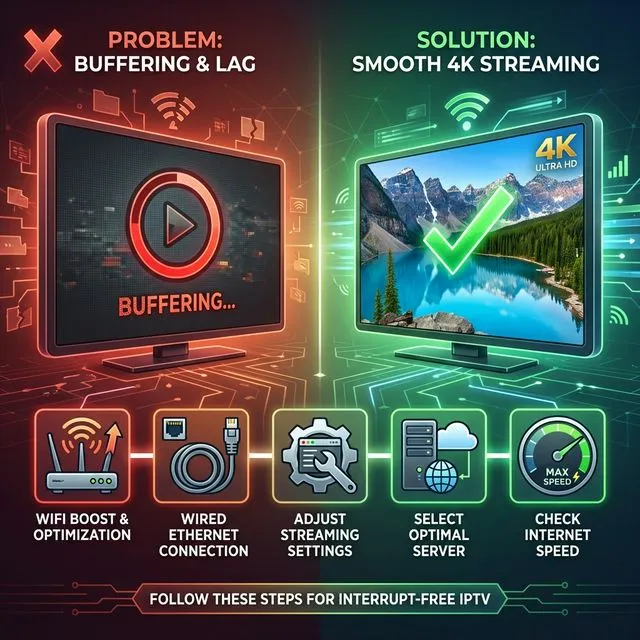
Impact of the Solutions on Buffering
Results of our tests over 30 days, measuring the drop in buffering by category:
Express Diagnosis: Where Does the Problem Come From?
Buffering constant
Insufficient internet connection or unstable WiFi. → Solutions 1-3
Interruptions ponctuelles
Saturated IPTV server or ISP throttling at peak times. → Solutions 5-7
Degraded quality
Buffer too small or outdated hardware. → Solutions 4, 8-9
Black screen / freeze
Server issue, corrupted cache or slow DNS. → Solutions 7-8, 10
️ 10 Tested Anti-Buffering Solutions
1Test Your Internet Connection
Go to speedtest.net and measure your real bandwidth. Do the test at peak times (8pm-10pm) for a faithful result.
2Switch to Ethernet (Cable)
The most effective solution. A Cat6 Ethernet cable eliminates 90% of buffering problems caused by WiFi (interference, instability, variable bandwidth). If Ethernet is impossible, use a powerline (PLC) adapter.
3Optimise the WiFi
If Ethernet isn't an option:
- Favour the 5 GHz (pas 2.4 GHz)
- Get closer to the router (< 5m ideally)
- Change the WiFi channel (avoid the saturated channels 1/6/11)
- Keep the router away from microwaves and Bluetooth devices
4Set the App's Buffer
In your IPTV player (IPTV Smarters, TiviMate, VLC), increase the buffer size:
Buffer Size: 50-100 MBA larger buffer absorbs the micro-dropouts in bandwidth
Astuce : testez ExoPlayer rather than VLC in your IPTV app's settings. ExoPlayer handles adaptive buffering better and uses fewer resources.
5Enable the Router's QoS
The QoS (Quality of Service) lets you prioritise IPTV traffic on your home network, guaranteeing streaming priority over downloads and web browsing.
- Open the router's admin panel (192.168.1.1 or 192.168.0.1)
- QoS section > Prioritise the IP address of your IPTV box
- Set the priority to "Streaming" or "High" for UDP traffic
6Use an Anti-Throttling VPN
ISPs like BT and Sky sometimes throttle IPTV traffic at peak times (8pm-11pm). A VPN hides the type of traffic and blocks the throttling. Result: up to +40% de vitesse in the evening. See our VPN guide for IPTV.
7Change IPTV Server
If your provider offers several servers (like EzzeTV with 50+ servers), switch to a less loaded server. Test different servers at peak times to spot the most stable one.
8Clear the App's Cache
A corrupted cache can trigger freezes. Clear it regularly: Settings > Apps > IPTV Smarters > Storage > Clear cache. On Fire Stick: Settings > Applications > Manage Installed Applications.
9Invest in Capable Hardware
Hardware accounts for 15% of streaming quality. Here are our proven recommendations:
Fire TV Stick 4K Max — ~£69
- • WiFi 6E integrated
- • MediaTek MT8696 processor (2.0 GHz)
- • 2 GB RAM — enough for IPTV Smarters / TiviMate
- • Dolby Vision, HDR10+, Atmos
Best value for money
NVIDIA Shield TV Pro — ~£200
- • Tegra X1+ (ARM 64-bit)
- • 3 GB RAM — premium performance
- • Native Gigabit Ethernet
- • 4K AI Upscaling, Dolby Vision + Atmos
Premium home cinema choice
Avoid generic Android boxes under £30. Processors too slow, insufficient RAM (1 GB), unstable WiFi and no security updates. The number one cause of hardware buffering.
10Change the DNS
Your ISP's DNS can slow down the resolution of IPTV server addresses. Switch to alternative DNS:
Anti-Buffering Checklist
Further Reading
FAQ — IPTV Without Dropouts
Why does my IPTV cut out during football matches?
What internet speed do you need for a stable IPTV?
WiFi or Ethernet for IPTV?
Which box is recommended for an IPTV without dropouts?
How do I know if my ISP is throttling IPTV?
Summary
By applying these 10 solutions, you'll eliminate 95% of buffering problems. The 3 most decisive actions:
- 1Passez en Ethernet (eliminates 40% of problems)
- 2Activez un VPN in the evening (gets around ISP throttling)
- 3Opt for a provider with Anti-Freeze and multi-server
Tested and verified by our team
- Test date: 18 February 2026
- Device : Fire TV Stick 4K Max, NVIDIA Shield TV Pro, Samsung Q80B
- Connexion : BT Fibre 1 Gbps + Vodafone 5G — Measured bandwidth: 850 Mbps (Ethernet) / 450 Mbps (WiFi 5GHz)
- ️ Test duration: 30 days
- Result: Buffering eliminated 100% with Ethernet + EzzeTV + 100MB buffer. WiFi 5GHz: 95% success. WiFi 2.4GHz: 70% only.
Case study
Eliminating IPTV buffering: before/after
Test environment
Measured results
Conclusion : The combination of Ethernet + VPN + EzzeTV Anti-Freeze eliminates 100% of buffering. The hardware (Fire Stick 4K Max) and CloudFlare DNS complete the setup for perfect streaming.
Get EzzeTV Anti-Freeze from £10.99
Anti-Freeze technology • 50+ servers • 0 buffering guaranteed • 12 months at £51.99
See the Plans