Apple devices — iPhone, iPad and Apple TV — are ideally suited to IPTV thanks to their high-definition Retina display and powerful chip. Contrary to a common belief, installing IPTV on iPhone requires no jailbreak. All the apps recommended in this guide can be downloaded directly from the official App Store.
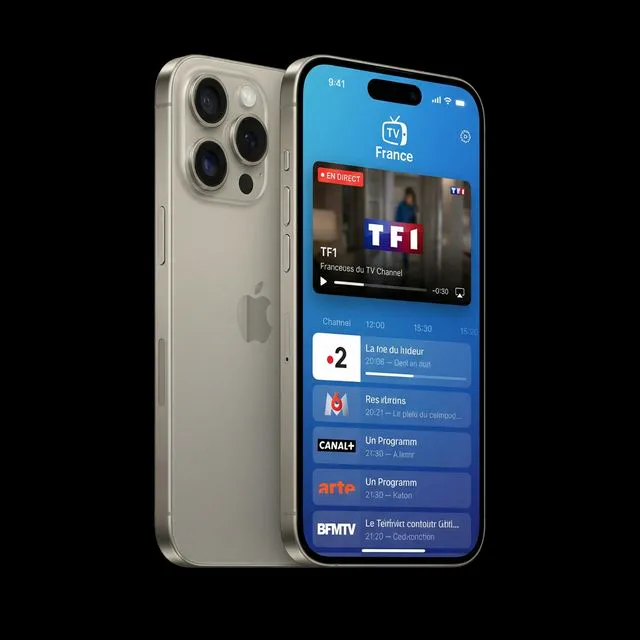
In this detailed tutorial, we guide you step by step through installing and setting up IPTV on iOS with the three best apps of 2026. Whether you have an iPhone 16 Pro Max or an older iPhone SE, this guide suits every model.
What you need before IPTV on iPhone & iPad
- An iPhone or iPad — running iOS 14 or later (iPhone 6s at minimum, iPhone 11+ recommended)
- An active IPTV subscription — with Xtream Codes credentials or an M3U link supplied by your provider
- A stable Wi-Fi connection — at least 10 Mbps for HD, 25 Mbps for 4K
- An Apple account — to install the apps from the App Store
Not subscribed yet?
Discover our our IPTV subscription offers from £4.33/month with 20,000+ channels, unlimited VOD and a 30-day money-back guarantee.
Method 1: IPTV Smarters Pro for iPhone
IPTV Smarters Pro is the most downloaded IPTV app on iOS. Its interface mirrors the Android version, which makes switching from one device to another easier. It supports the Xtream Codes API and M3U playlists.
Step 1: Downloading from the App Store
- Ouvrez l'App Store on your iPhone or iPad
- Recherchez "IPTV Smarters Pro"
- Appuyez on "Get" then confirm via Face ID or Touch ID
- Wait until the download and installation are complete
- Launch the app from your home screen
Step 2: Logging in via Xtream Codes
- On first launch, accept the terms of use
- Select "Login with Xtream Codes API"
- Enter your details:
- → Any Name : a name of your choice (e.g. "My Premium IPTV")
- → Username : your IPTV username
- → Password : the associated password
- → Server URL : the server URL with its port
- Appuyez on "Add User"
- The channels load on their own in 30 seconds to 2 minutes
Step 3: Navigating the app
Once connected, the Smarters Pro home screen displays the following categories:
Live TV
Channels live
Movies
Films on VOD
Series
TV Series
EPG
Guide programmes
Method 2: GSE Smart IPTV for iPhone
GSE Smart IPTV is a very good alternative available on the App Store. It stands out for its highly effective built-in video player, its native Chromecast compatibility and its support for many playlist formats.
Installation and setup
- Recherchez "GSE Smart IPTV" from the App Store
- Download then install the free app
- Launch GSE Smart IPTV
- Go to the menu "Remote Playlists"
- Tap the button "+" in the top right
- Choose "Add M3U URL" ou "Add Xtream Codes API"
- Enter your credentials or your M3U link
- Appuyez on "Add" then wait while it loads
The strengths of GSE Smart IPTV
- Powerful built-in video player compatible with many codecs
- Native Chromecast compatibility to cast to your TV
- Support for subtitles and multiple audio tracks
- Picture-in-Picture mode available on iPad
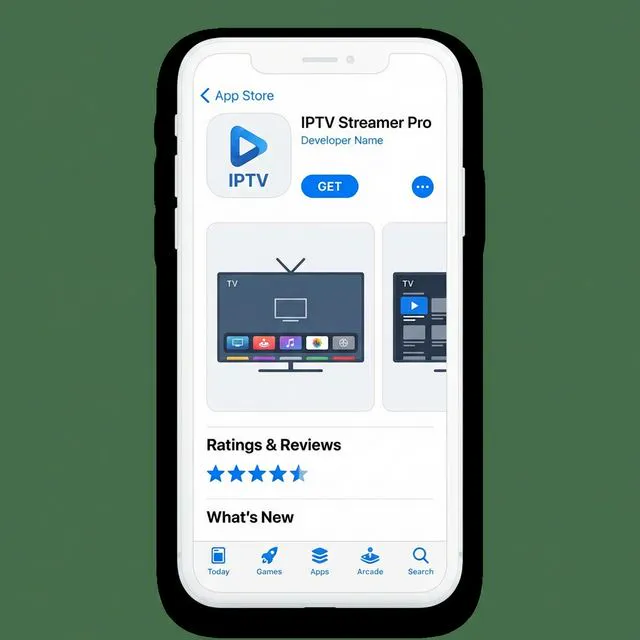
Method 3: iPlayTV (Optimised for Apple TV)
iPlayTV is the top-tier IPTV app designed exclusively for the Apple world. Available on iPhone, iPad and Apple TV, it delivers a consistent experience, with a native iOS design and flawless AirPlay integration.
- Recherchez "iPlayTV" from the App Store
- The app is paid (around £5.99 — one-off payment)
- Once installed, launch iPlayTV
- Add your playlist from "Add Playlist"
- Choose the type: M3U URL or Xtream Codes
- Enter your login details
- The app syncs the channels and EPG on its own
IPTV Apps on iOS Compared
| Criterion | Smarters Pro | GSE Smart | iPlayTV |
|---|---|---|---|
| Prix | Free | Free (pub) | ~£5.99 |
| Xtream Codes | Oui | Oui | Oui |
| M3U Support | Oui | Oui | Oui |
| EPG | Basique | Bon | Excellent |
| AirPlay | Oui | Oui | Natif |
| Apple TV | Via AirPlay | Via AirPlay | App native |
| Ideal for | Beginners | Polyvalent | Apple TV |
Streaming IPTV via AirPlay
One of the major strengths of the Apple ecosystem remains AirPlay. You start IPTV streaming on your iPhone, then send it wirelessly to your TV via Apple TV or an AirPlay 2-compatible screen.
Using AirPlay with IPTV:
- Open your IPTV app and start a live stream
- Ouvrez le Control Centre (swipe down from the top-right corner)
- Appuyez on "Screen Mirroring"
- Select your Apple TV or a compatible TV
- The picture appears on your TV straight away
Optimising IPTV on iPhone and iPad
Autonomie
- Lower the screen brightness while streaming
- Turn off Bluetooth if it is not needed
- On Wi-Fi, turn off mobile data
- Close apps running in the background
Connexion
- Prefer 5 GHz Wi-Fi to reduce latency
- Disable "Wi-Fi Assist" in the mobile data settings
- Enable data saver mode
- Restart the Wi-Fi if the stream stutters
Fixing Common Problems on iOS
The app refuses to open or crashes
- → Install the latest available version of iOS
- → Uninstall then reinstall the app via the App Store
- → Free up storage (at least 500 MB available)
- → Restart the iPhone (hold Power + Volume)
Black screen when launching a channel
- → Check your internet connection (run a speed test)
- → Try another channel — its server may be under maintenance
- → Change the video player in the app settings
- → Briefly turn off your VPN if you have one
Poor picture quality
- → Make sure you have enough bandwidth (at least 10 Mbps for HD)
- → Turn off "Data Saver" mode in the iOS settings
- → Move closer to your Wi-Fi router
- → Choose an HD or FHD stream in the channel list
AirPlay is not working
- → Confirm that the iPhone and Apple TV share the same Wi-Fi network
- → Restart both devices
- → Update tvOS on your Apple TV
- → Disable then re-enable AirPlay in the settings
Using a VPN for IPTV on iPhone
On iOS, installing a VPN is even easier than on Android. The major VPNs are found directly on the App Store and blend in perfectly with iOS.
The reasons to use a VPN on iPhone:
- Privacy — your streaming data stays encrypted and anonymous
- Anti-throttling — your ISP can no longer throttle your IPTV bandwidth
- Security on public Wi-Fi — protection even on unsecured networks
To go further, discover our VPN for IPTV guide 2026.
Apple Devices Compatible with IPTV
iPhone
- iPhone 16 / 16 Pro Max
- iPhone 15 / 15 Pro
- iPhone 14 / 13 / 12
- iPhone 11 / XR / XS
- iPhone SE (2nd/3rd gen)
iPad
- iPad Pro M4 / M2
- iPad Air M2 / M1
- iPad 10th generation
- iPad mini 6th generation
- All iPads running iOS 14+
Apple TV
- Apple TV 4K (3rd gen 2024)
- Apple TV 4K (2nd gen)
- Apple TV HD
- Via AirPlay or native app
- iPlayTV recommended
Enjoy IPTV on your iPhone from Today
Access 20,000+ channels and 192,000+ films/series from your iPhone, iPad or Apple TV. 30-day money-back guarantee.
Choose My PlanHow iOS differs from Android
If you are coming from Android or setting up a mixed household, a few differences are worth knowing before choosing your app. They all stem from the rules Apple sets on its app store.
No installation via APK
On Android, you install an app outside the store using an APK file. iOS forbids this: everything must go through the App Store. In practice, the choice of players is more limited — but every app on offer has been approved by Apple.
TiviMate is absent from iOS
This is the most common disappointment for users coming from Android TV. The best player in the Android world has never had an iOS version and probably never will. IPTV Smarters Pro stands out as the go-to alternative on iPhone and iPad.
Restricted background playback
iOS aggressively pauses apps in the background to save battery. If you are listening to a news channel in the background, the sound may stop after a few minutes depending on the app and the iOS version.
A different approach to storage
An IPTV app's cache swells quickly with a package of several tens of thousands of channels. On iOS, clearing it sometimes forces you to uninstall then reinstall the app — you then have to re-enter your credentials.
Good news all the same: your credentials stay exactly the same across every system. A subscription set up on iPhone works identically on an Android, a Smart TV or a computer, with no extra step. How these credentials work is explained in detail in our Xtream Codes and M3U guide, and its Android version in installing IPTV on Android.
Sending IPTV from iPhone to the TV
It is a use case many discover later on: watching on the iPhone is handy, but the screen stays small. Three methods exist, and they are far from equal.
AirPlay to Apple TV
The most polished method. The stream travels over the local network, the quality is preserved and the iPhone stays free for other things. Requires an Apple TV or an AirPlay 2-compatible TV.
Screen Mirroring
Works everywhere but noticeably degrades the picture: the whole screen is transmitted, notifications included, with visible latency. Keep it for troubleshooting.
Lightning or USB-C to HDMI cable
Reliable and lag-free, but the iPhone stays physically tethered to the TV the whole time and drains despite charging simultaneously.
If you often cast to the TV, installing the app directly on a dedicated device remains far preferable: see our Roku and Apple TV guide ou le Fire Stick tutorial.
Mobile data and battery: the essentials to know
Watching IPTV on 4G or 5G is perfectly doable, but the consumption often surprises. A football match in Full HD easily swallows the equivalent of several days of everyday use.
SD
~1,5 Go/h
Troubleshooting: listen rather than watch
HD 720p
~3 Go/h
A good compromise on a smartphone
Full HD
~5 à 6 Go/h
Reserve it for Wi-Fi or unlimited plans
With a limited plan, force the resolution in the player settings instead of relying on automatic adaptation: it favours quality as long as the bandwidth keeps up, and your allowance melts away without you noticing. Also enable the data usage alert in iOS, via Settings → Mobile Data.
On the battery side, expect a drain of around 20 to 25% per hour of video streaming — decoding and the constantly lit screen are the two main culprits. Reducing the brightness and enabling hardware decoding in the app noticeably extend battery life. To compare with other platforms, see the IPTV apps comparison.