To install IPTV Android, download IPTV Smarters Pro or TiviMate from the Play Store, open it, and enter your Xtream Codes login or M3U URL. Setup takes about 5 minutes. EzzeTV emails your credentials instantly after signup, and the 1-month plan at £10.99 lets you check playback on any Android phone, tablet or box.
Android is the most widely used operating system in the world, and it is also one of the best platforms for enjoying IPTV. Whether you have a Samsung smartphone, a Google Pixel, a Huawei tablet or an Android box Android TV, this guide explains how to set up and configure IPTV on Android step by step in 2026.
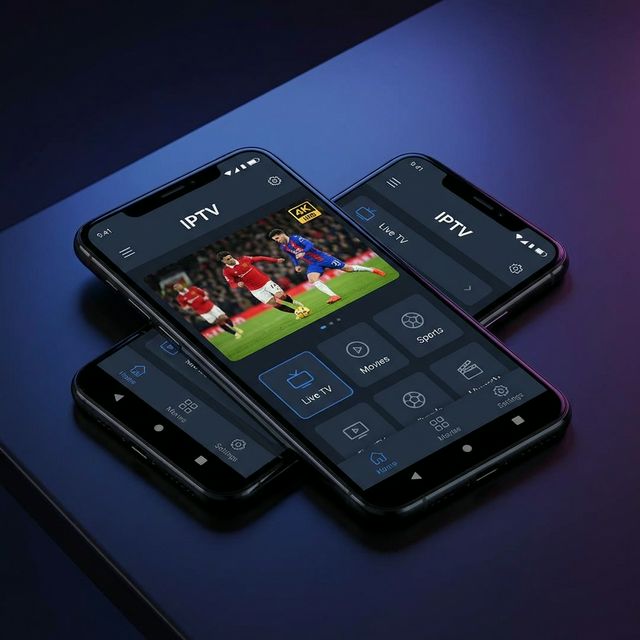
We review the two most popular apps — IPTV Smarters Pro et TiviMate — with a precise step-by-step walkthrough for each. Once you have finished this tutorial, you'll be able to watch more than 20,000 live TV channels on your Android device.
What You Need Before You Start
Before you begin the installation, make sure you have the following to hand:
- An Android device — smartphone, tablet or Android TV box running at least Android 5.0 (Android 8.0+ recommended)
- A valid IPTV subscription — along with your Xtream Codes credentials (username, password, server URL) or an M3U link
- A reliable internet connection — at least 10 Mbps for HD, 25 Mbps for 4K
- Some storage space — a minimum of 100 MB available for the app
Conseil
If you don't yet have an IPTV subscription, browse our IPTV subscription plans from £4.33/month with a 30-day money-back guarantee.
Method 1: Setting Up IPTV with Smarters Pro
IPTV Smarters Pro is the most popular app for watching IPTV on Android. Its interface is intuitive and it supports the Xtream Codes and M3U formats. Here's how to install and configure it.
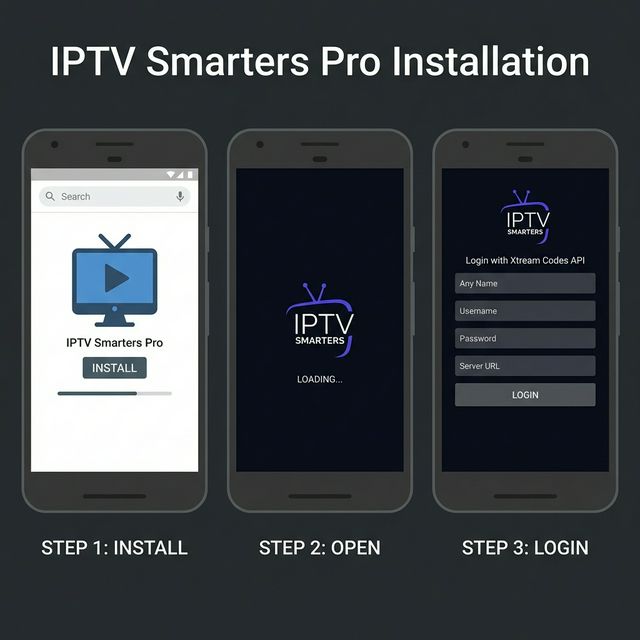
Step 1: Get IPTV Smarters Pro
- Ouvrez le Google Play Store from your Android device
- Recherchez "IPTV Smarters Pro" via the search bar
- Choose the official app (publisher: WHMCS SMARTERS)
- Appuyez on "Installer" then wait for it to download
- Once the installation is complete, tap "Ouvrir"
Step 2: Set Up via the Xtream Codes API
The Xtream Codes method is the simplest and most reliable. It ensures automatic synchronisation of the channels and the programme guide (EPG).
- On first launch, accept the terms of use
- Select "Login with Xtream Codes API"
- Fill in the fields below:
- → Any Name : whatever name you like (e.g. "My IPTV")
- → Username : your IPTV username
- → Password : your IPTV password
- → Server URL : the server address (e.g. http://your-server.com:port)
- Appuyez on "Add User"
- Wait while the channels load (30 seconds to 2 minutes)
Step 3: Set Up with an M3U Link (alternative option)
If your provider has given you an M3U link rather than Xtream Codes credentials, here's what to do:
- In Smarters Pro, choose "Load Your Playlist or File/URL"
- Choose "M3U URL"
- Give your playlist a name
- Enter your full M3U link in the URL field
- Appuyez on "Add User" et patientez
Note importante
We recommend the Xtream Codes API method over M3U. It offers better sorting of channels by category, faster loading and an automatically integrated programme guide (EPG).
Method 2: Setting Up IPTV with TiviMate
TiviMate is the favourite app of experienced users. Its interface resembles a genuine TV guide, with a visual EPG, recording capability and advanced customisation options. It's the ideal app if you're using an Android TV box or an IPTV box.
Step 1: Get TiviMate
- Ouvrez le Google Play Store
- Recherchez "TiviMate IPTV Player"
- Install the official app (publisher: AR Mobile Dev)
- Launch TiviMate once installed
Step 2: Import Your Playlist
- On first launch, TiviMate prompts you to add a playlist
- Select "Xtream Codes" (recommended) or "M3U playlist"
- In the case of Xtream Codes:
- → Entrez l'server address
- → Enter your username
- → Enter your the password
- Appuyez on "Suivant"
- The app will automatically fetch the channels and the EPG
Step 3: Set Up the EPG and Favourites
TiviMate is excellent for managing the electronic programme guide (EPG). Here's how to get the most out of it:
- EPG automatique — TiviMate refreshes the TV guide automatically if your IPTV provider allows it
- Favoris — Long-press a channel to add it to your favourites and create custom groups
- Enregistrement — The Premium version allows live programmes to be recorded for later viewing
- Rattrapage TV — Enable catch-up to re-watch recently broadcast programmes
Smarters Pro or TiviMate: Which Player Should You Choose?
Both apps are excellent, but they target different profiles. Here's a detailed comparison to help you decide.
| Criterion | Smarters Pro | TiviMate |
|---|---|---|
| Ease d'utilisation | ||
| User interface | Modern and clean | TV guide look |
| EPG integrated | Basique | Advanced and visual |
| Enregistrement | Non | Oui (Premium) |
| Multi-playlist | Oui | Oui |
| Prix | Free | Free / Premium at ~£5/year |
| Catch-up TV | Non | Oui |
| Ideal for | Beginners | Advanced users |
Improving Streaming Quality on Android
Once IPTV is installed, here are the essential settings for getting the best picture and buffer-free streaming on your Android device.
Wi-Fi Settings
- Favour the 5 GHz network over 2.4 GHz
- Stay close to the router (less than 10 m)
- Opt for an Ethernet adapter if possible (Android TV box)
- Stop background downloads
Settings Application
- Choose the "Hardware" video player for better performance
- Enable hardware decoding in the settings
- Set the buffer size to "Medium" or "Large"
- Set the video resolution to "Auto" mode
Supported Android Devices
IPTV can be used on a wide range of Android devices. Here are the main categories and the recommended models for an optimal experience in 2026.
Smartphones
- Samsung Galaxy S24 / S25
- Google Pixel 9 / 10
- OnePlus 13
- Xiaomi 15
- All Android 8.0+
Android TV Boxes
- NVIDIA Shield TV Pro
- Chromecast with Google TV
- Xiaomi Mi Box S
- Mecool KM2 Plus
- Formuler Z11 Pro Max
️ Tablettes
- Samsung Galaxy Tab S9 / S10
- Lenovo Tab P12 Pro
- Xiaomi Pad 6S Pro
- OnePlus Pad 2
- All Android 8.0+
Fixing Common Problems
If you run into trouble while installing or using IPTV on Android, here are the solutions to the most common problems.
"Unable to connect to the server"
- → Make sure your IPTV subscription is active and still valid
- → Check the server address — not forgetting the port number
- → Check that you are not exceeding the number of connections allowed
- → Measure your internet connection with a speed test
Repeated freezing and interruptions
- → Switch to 5 GHz Wi-Fi or plug in an Ethernet cable
- → Close other bandwidth-hungry apps
- → Lower the video quality from 4K to Full HD
- → Increase the buffer size in the app settings
- → See our detailed anti-freeze guide
App missing from the Play Store
- → Some IPTV apps are regularly removed from the Play Store
- → Get the APK directly from the publisher's official website
- → Allow "Unknown sources" in Settings > Security
- → Install the APK manually by opening the downloaded file
No sound or out-of-sync audio
- → Change the video player in the settings (Hardware → Software or vice versa)
- → Check your device's volume and the app's volume
- → Try changing the audio track in the playback options
- → Restart the app then reconnect
Protecting your IPTV on Android with a VPN
Using a VPN is strongly recommended to preserve your privacy and secure your IPTV connection. A VPN encrypts your data and stops your ISP from monitoring your streaming activity.
The benefits of a VPN for IPTV:
- Privacy preserved — your ISP can't see what you're watching
- Anti-throttling — stops your ISP from throttling your streaming bandwidth
- Enhanced security — your data encrypted end to end
To find out more, see our VPN guide for IPTV.
Other IPTV Apps on Android
Although Smarters Pro and TiviMate are the most widespread, other apps are worth a look depending on your particular needs:
XCIPTV Player
Modern interface, multi-playlist support, integrated EPG. A solid alternative to Smarters Pro with smoother navigation.
OTT Navigator
Highly customisable, with advanced management of playlists and favourites. Ideal for those who want total control.
Perfect Player
Lightweight and efficient, with a minimalist interface. Perfect for less powerful Android devices.
VLC for Android
Versatile open-source player that supports M3U natively. Basic for IPTV but reliable.
Ready to Get Started with IPTV on Android?
Take out your IPTV subscription now and access 20,000+ channels on your Android device. 30-day money-back guarantee.
Explore the SubscriptionsAndroid TV, Android Smartphone, Android Box: What's the Difference for IPTV?
Not all Android devices offer the same IPTV experience. Here are the three main families and what sets them apart:
Android TV / Google TV
OS optimised for the remote and the big screen (Nvidia Shield, Mi Box, built-in Sony/Philips/TCL TV). TiviMate Premium runs natively with its remote-friendly interface. The best possible IPTV experience in the living room.
Android Smartphone / Tablet
Standard Android on smartphone (Samsung, Xiaomi, Pixel...) and tablet. IPTV Smarters Pro remains the go-to app with its polished touch interface. TiviMate works but is still designed for the TV.
Box Android (X96, H96, T95)
Generic budget Android boxes of Chinese origin (£30–60). Compatible with IPTV Smarters Pro and TiviMate but of uneven quality. Go for models with an S905X4 / S922X chip and 4 GB of RAM for smooth 4K HEVC.
Frequently Asked Questions — IPTV on Android
L'team EzzeTV
IPTV and streaming specialistsStreaming and IPTV specialists in the UK, our editorial team tests and compares services, apps and devices every day to bring you reliable, up-to-date guides that reflect the reality of the UK market in 2026.
Related Articles
All of our IPTV installation guides
Fire Stick, Smart TV, Android, iPhone and many more.
Setting Up IPTV on Fire Stick
Step-by-step tutorial for Amazon Fire TV.
IPTV on Samsung & LG Smart TVs
Complete setup for Smart TVs.
Complete TiviMate Guide
The premium IPTV app on Android TV.
IPTV Smarters Pro Guide
The universal app for all your devices.