Si IPTV Smarters Pro remains the most installed IPTV app, TiviMate is the unanimous choice as the best IPTV player on Android TV and Fire TV Stick among experienced users.
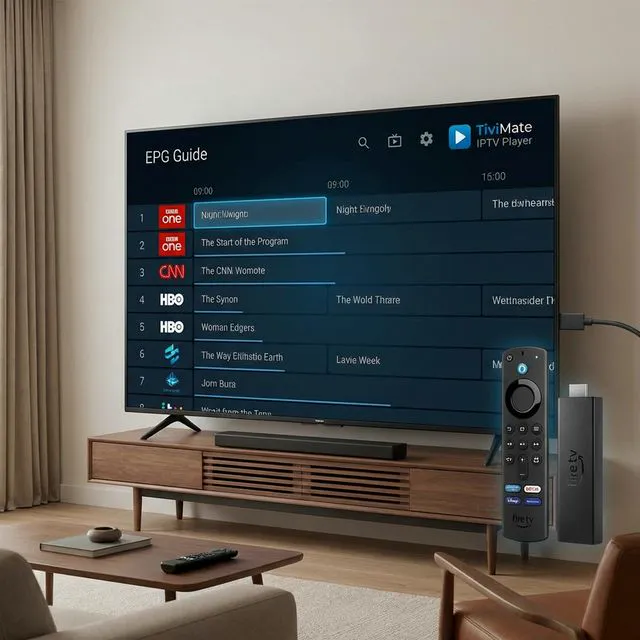
Its grid EPG interface is reminiscent of the best premium boxes (Sky Sports, Free), its remote-control navigation is remarkably smooth, and its advanced features (recording, multi-playlist, Catch-up TV) make it the number 1 choice for a big-screen TV experience.
Why TiviMate Is the Best IPTV Player
Points forts
- Full-screen grid EPG (box-style)
- Ultra-smooth remote-control navigation
- Programme recording
- Built-in Catch-up TV
- Multi-playlist (several providers)
- Personalised favourites and groups
- Real-time mini-EPG overlay
- Performance optimised for TV
️ Limitations
- ️Android only (no iOS)
- ️Paid Premium version (~£5/year)
- ️No native PC/Mac version
- ️Not on the Google Play Store (APK)
TiviMate vs IPTV Smarters Pro
| Criterion | TiviMate | Smarters Pro |
|---|---|---|
| Interface TV | ||
| Grid EPG | Plein screen | Basique |
| Navigation remote | Excellente | Correcte |
| Enregistrement | Premium | Non |
| Multi-playlist | Premium | Oui |
| iOS compatible | ||
| Prix | ~£5/an (Premium) | Free |
| Best for | TV / Fire Stick | Mobile / Cross-platform |
Verdict : Utilisez TiviMate on your TV (Fire Stick, Android TV, Nvidia Shield) and IPTV Smarters Pro on your smartphone. The two complement each other perfectly!
Installing TiviMate
On Fire TV Stick
- Installez Downloader from the Amazon App Store
- Enable "Unknown sources" in Settings → My Fire TV
- Open Downloader and enter the TiviMate URL
- Download then install the APK
- Launch TiviMate from your apps menu
On Android TV / Nvidia Shield
- Search for "TiviMate" in your TV's Google Play Store
- If it's absent, use the Downloader method (as on Fire Stick)
- Or transfer the APK via a USB stick or a file manager
On Android Smartphone
- Download the TiviMate APK from the official site
- Allow installation from unknown sources if needed
- Install the APK then open the app
Note: TiviMate is designed for big screens. On a smartphone, IPTV Smarters Pro est preferable.
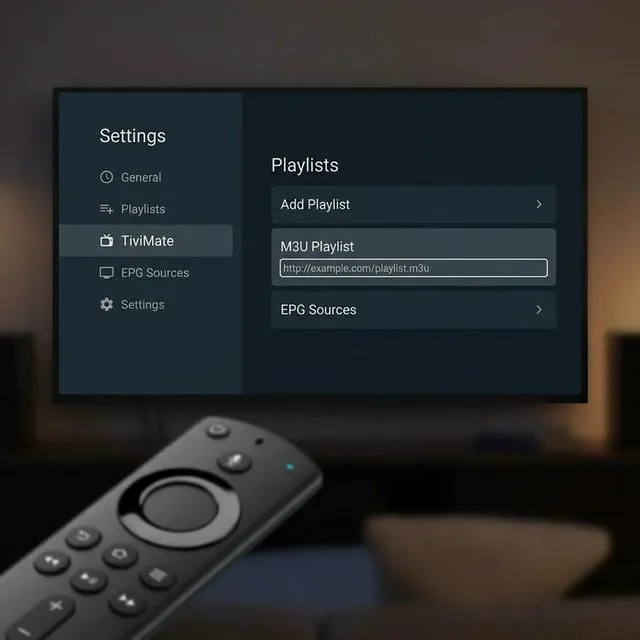
Configuring TiviMate with Xtream Codes
Premier lancement
TiviMate offers to add a playlist. Choose "Xtream Codes".
Enter your credentials
URL serveur :
http://your-server.com:port
Username:
votre_username
Password:
votre_password
Loading the EPG
TiviMate automatically downloads the programme guide. Allow 1 to 3 minutes depending on the number of channels. Wait until the loading is complete.
C'est ready !
The grid EPG appears with all your channels. Use the remote to navigate: arrows to zap, OK to confirm, back for the menu.
TiviMate Premium vs Free Version: Detailed Table
TiviMate relies on a well-judged freemium model: the free version is more than enough to get started, the Premium version (around £25 par an) unlocks the advanced features that make TiviMate the most accomplished IPTV app on the Android TV market. Here is the feature-by-feature comparison:
| Feature | Version Free | Version Premium |
|---|---|---|
| Channel playback | Unlimited | Unlimited |
| Number of playlists | 1 seule | Unlimited |
| Grid EPG | Basique 7j | Advanced 14-day |
| XMLTV EPG sources | 1 source | Sources multiples |
| Favoris | Limited | Unlimited + groups |
| DVR / Enregistrement | Live + scheduled | |
| Catch-up TV / Replay | Jusqu'à 7 days | |
| Control parental | PIN code + profiles | |
| Chromecast integrated | ||
| Personnalisation interface | Basique | Complete |
| Support technique | Community | Email officiel |
| Prix | £0 | ~£25/year or ~£5 for life (depending on the offers) |
Our recommendation: start with the free version to check that TiviMate suits you and that your IPTV subscription works well with it. After a week of daily use, buy the Premium licence — you recoup the investment in two or three match recordings or in the time saved thanks to favourites and multi-playlist.
Configuring the XMLTV EPG: TiviMate's Pro TV Guide
An IPTV without an EPG is like a car without a dashboard: you get to your destination but it's a pain. The EPG (Electronic Program Guide) in XMLTV format shows, for each channel, the current programme, the grid of upcoming times, the descriptions, and allows recordings to be scheduled. TiviMate handles this better than any other application.
Recommended XMLTV sources in the UK
- • IPTV provider EPG — generally automatic via the Xtream Codes API, covers the channels included in your subscription
- • Community EPG sources — to supplement foreign or specialist channels (anime, documentaries)
- • Custom XMLTV EPG — a .xml.gz file hosted by your provider or self-hosted, refreshed every 4–24h
Multi-source configuration steps
- Open TiviMate Premium → Settings → Sources EPG
- Add the main source (most often already configured by Xtream Codes)
- Cliquez on "Add a source" and paste the external XMLTV URL
- Set the priority: the main source takes precedence, the others fill in the missing channels
- Set the update interval: 4 heures is the right balance between load and freshness
- Trigger a manual update to check that the EPG comes through correctly on all your channels
Astuce : if the EPG doesn't appear for certain channels, it's often an ID matching issue (tvg-id). TiviMate Premium offers an ID editor to manually associate a channel with its XMLTV EPG — very useful for international channels.
Advanced TiviMate Tips
Organising your favourites
Highlight a channel → Long press → "Add to favourites". Create several groups (Sport, News, Films). Find your favourites via the side menu.
Recording a programme (Premium)
During playback, press the red button on the remote or choose "Record" in the menu. You can also schedule a recording from the EPG.
Personnaliser l'interface
In Settings → Appearance, adjust the size of the EPG grid, the wallpaper, the colour theme and the menu transparency for a bespoke experience.
Enabling Catch-up TV
In Settings → Playlist → your playlist → enable Catch-up. From the EPG, past programmes appear greyed out and play with a simple press.
Refreshing the EPG automatically
Settings → EPG → Update interval → Choose "Every 4 hours" to keep programmes up to date without any effort.
DVR and Scheduled Recordings: Setting Up Storage
One of the most popular features of TiviMate Premium is the DVR integrated which turns your Fire TV Stick or box Android into a modern digital video recorder. Here's how to set it up correctly so you never miss a match, a final or a late-night film again.
Choosing the storage location
- • Stockage interne — handy but limited (8 to 32 GB on Fire Stick, fills up fast)
- • External USB hard drive — recommended: plug a USB 3.0 HDD (1 TB is enough for hundreds of hours of HD) into the USB port of your Android box or Nvidia Shield
- • NAS network storage — for advanced users equipped with a Synology or QNAP: TiviMate Premium accepts SMB/CIFS paths
Scheduling a recording from the EPG
- Open the grid EPG and locate the programme to record
- Long-press the programme or click the button « Enregistrer »
- Set the safety margin before/after (recommended: 2 min before, 10 min after for sport)
- Confirm — TiviMate will start and stop the recording all by itself, even if you're watching another channel at the same time
- Find your recordings in the side menu, section « Library », immediate playback or export possible
️ À savoir : recording uses one of the simultaneous connections allowed by your IPTV subscription. With the Premium 1-connection offer, you can't record AND watch another channel at the same time. Upgrade to the 4K offer (2 connections) or Family offer (5 connections) to make full use of the DVR.
Frequently Asked Questions — TiviMate
L'team EzzeTV
IPTV and streaming expertsStreaming and IPTV specialists in the UK, our editorial team tests and compares services, apps and devices every day to bring you reliable, up-to-date guides that are true to the reality of the French market in 2026.
Transform your TV with TiviMate + IPTV
36,000 channels • grid EPG • Recording • 7-day support
See our Subscriptions