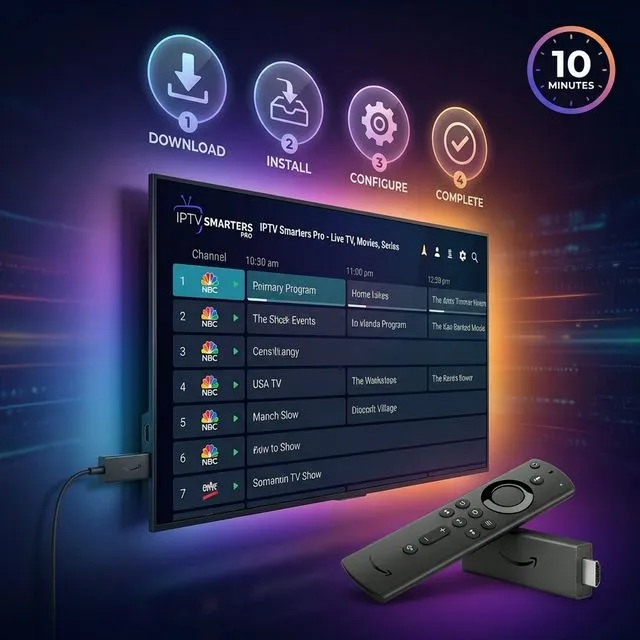
To set up IPTV Firestick, enable Apps from Unknown Sources, install Downloader, sideload IPTV Smarters Pro, then enter your Xtream Codes login or M3U URL. The whole process takes about 5 minutes. EzzeTV provides your credentials instantly after signup, and you can start with the 1-month plan at £10.99 to check playback first.
Just got yourself a Fire TV Stick and want to enjoy your Premium IPTV service on it? You're in the right place! In this complete 2026 guide, we walk you through how to install IPTV on a Fire TV Stick in under 10 minutes, even as a beginner.
The Amazon Fire TV Stick is one of the most popular devices for watching IPTV, thanks to its ease of use, its affordable price (£39-£69) and its compatibility with all the common IPTV apps such as IPTV Smarters Pro, TiviMate, and Perfect Player.
What you'll discover
- Download and install IPTV Smarters Pro on the Fire Stick
- Set up your IPTV subscription with the Xtream codes
- Adjust the settings for uninterrupted 4K streaming
- Fix common problems (buffering, EPG, quality)
Prerequisites Before Installation
Hardware Requis
- Amazon Fire TV Stick (4K, 4K Max, or standard)
- A television with an HDMI port
- Internet connection (min 25 Mbps for 4K)
- Fire Stick remote
Account Information
- Active IPTV subscription
- Xtream Codes credentials (server, username, password)
- Server URL (e.g. http://example.com:8080)
Astuce : If you don't yet have an IPTV subscription, you can start with EzzeTV's 1-month plan at £10.99 to try the service before committing for longer.
1Enable Developer Options (1 minute)
By default, the Fire TV Stick restricts app installation to sources approved by Amazon. To install IPTV Smarters Pro, you first need to enable an option.
Procedure:
- 1Switch on your Fire TV Stick and go to the home screen
- 2Naviguez towards Settings (gear icon in the top right)
- 3Select My Fire TV (or My Fire TV)
- 4Cliquez on Developer Options
- 5Activez "Apps from Unknown Sources" and "ADB Debugging"
- 6Confirm by clicking on Activate
Expected result: Both options must be set to ON (blue)
2Install the Downloader App (2 minutes)
Downloader is a free official Amazon app that lets you download APK files onto the Fire Stick.
Installation Downloader :
- 1Revenez à l'screen d'accueil Fire Stick
- 2Cliquez on l'Search icon (magnifying glass at the top)
- 3Tapez "Downloader"
- 4Select Downloader by AFTVnews (orange icon)
- 5Cliquez on Download then Ouvrir
3Download the IPTV Smarters Pro APK (2 minutes)
Now that Downloader is installed, we'll fetch the IPTV Smarters Pro app.
Download Steps:
- 1In Downloader, click in the field URL
- 2Enter the following URL exactement :
https://www.iptvsmarters.com/IPTVSMARTERS_PRO.apk- 3Cliquez on GO
- 4The download starts (around 25 MB, 30-60 seconds)
Important : Always download from the official iptvsmarters.com site to avoid malware.
4Install IPTV Smarters Pro (1 minute)
As soon as the download finishes, installation starts on its own.
- 1A window appears: "Install IPTV Smarters Pro?"
- 2Cliquez on Installer
- 3Attendez 10-20 secondes
- 4Message : "App Installed"
- 5Cliquez on Ouvrir
5Set Up Your IPTV Subscription (3 minutes)
Once IPTV Smarters Pro is open, you land on the login screen.
Configuration Initiale :
- 1Choose "Login with Xtream Codes API" (recommended)
- 2Enter your EzzeTV credentials:
- • Server URL : http://your-server.com:8080
- • Username : votre_username
- • Password : votre_password
- 3Cochez "Remember Me"
- 4Cliquez on "Add User"
Congratulations! You're now connected and you can access the channel categories (Live TV, Movies, Series)
Optimise Uninterrupted 4K Streaming
For smooth 4K streaming with no buffering, adjust these settings.
Settings Recommended :
Video Quality:
- • Video Quality : Auto ou 4K UHD
- • Decoder : Hardware
- • Render : Surface
Buffer (Anti-Freeze):
- • Buffer Size : 15-20 secondes
- • Rebuffer : Enabled
- • EPG : Enabled
Common Problems and Solutions
Recurring Buffering / Drops
- • Check your speed on fast.com (min 25 Mbps for 4K)
- • Prefer an Ethernet cable over Wi-Fi
- • Raise the buffer to 20 seconds
- • Contactez support to switch server
️ The EPG Won't Display
- • Settings > Player Settings > EPG: Enable
- • Force a refresh: Settings > Update EPG
- • Patientez 2-5 minutes
️ "Cannot Connect" / Credentials Rejected
- • Check the server URL (http://, port :8080)
- • Follow the upper/lower case exactly
- • Check that the subscription is active
- • WhatsApp support < 5 min
Applications Alternatives
TiviMate
The most polished interface, excellent EPG
Payant - 5$/anPerfect Player
100% free, extensive customisation
FreeVLC Player
Open-source, plays every format
FreeFAQ - Frequently Asked Questions
Is the Fire TV Stick 4K better for IPTV?
Can I use IPTV without a VPN?
How much bandwidth does IPTV use?
Is IPTV Smarters Pro legal?
Conclusion - Enjoy your IPTV!
Recap in 5 Steps:
- Enable developer options
- Installer Downloader
- Download the IPTV Smarters Pro APK
- Set up with the Xtream credentials
- Adjust the settings (4K, buffer, EPG)
Total Time: 10 minutes ️
Which Fire TV Stick should you choose for IPTV?
Amazon offers several models at very similar prices, and this choice has a direct bearing on how smoothly IPTV runs. The deciding factor is neither the price nor the stated resolution, but the amount of RAM and the presence of HEVC hardware decoding.
| Model | RAM | Resolution | Verdict IPTV |
|---|---|---|---|
| Fire TV Stick Lite | 1 Go | Full HD | Avoid — struggles from 5,000 channels |
| Fire TV Stick (HD) | 1 Go | Full HD | Fine in Full HD only |
| Fire TV Stick 4K | 1,5 Go | 4K HDR | Good value for money |
| Fire TV Stick 4K Max | 2 Go | 4K HDR10+ | The best choice |
The price gap between the 4K and the 4K Max is modest, but the extra 500 MB of memory makes all the difference on a line-up of tens of thousands of channels: the interface stays responsive, the programme guide loads without freezing and channel-switching drops under a second and a half. If the budget allows, this is the model to go for. To compare it with the Android TV alternatives, see our Android TV box comparison.
Slow or laggy Fire Stick: 7 optimisations
A new Fire Stick is smooth; after a few months, it lags. The cause is almost never the hardware, but the build-up of background processes and cache. These seven settings, applied in order, restore the responsiveness of the early days.
Disable data collection
Settings → Preferences → Privacy: turn off "Collect app usage data". This service runs constantly and eats up memory with no benefit whatsoever to you.
Turn off the home-screen videos
Settings → Preferences → Featured Content: disable the autoplay of trailers. They use up bandwidth constantly, including while you're watching IPTV.
Clear the apps' cache
Settings → Applications → Manage Installed Applications → your IPTV player → Clear cache. Repeat every couple of months: the cache of a player that loads 36,000 channels swells quickly.
Remove unnecessary apps
Every installed app ties up memory even when closed. On a 1.5 GB device, removing five unused apps is noticeable straight away.
Switch to Ethernet
The official Ethernet adapter costs around £20 and eliminates the number-one cause of drops. Behind a television, a Fire Stick's Wi-Fi signal is physically blocked by the screen itself.
Enable hardware decoding
In your player's settings, switch the decoder to "HW" or "HW+". With software decoding, the Fire Stick's processor maxes out on a 4K HEVC stream and the picture stutters, even with an excellent connection.
Restart once a week
Hold Select + Play for five seconds. A simple weekly restart frees up memory and prevents 80% of gradual slowdowns.
If the drops persist after these seven settings, the cause lies with the network or the server: apply our complete method for fixing IPTV buffering and check your actual available internet speed.
The most common installation errors
"App not installed" at the end of the download
Storage is full. The Fire Stick has only 8 GB, of which around 5 are actually usable. Uninstall two or three apps before restarting the APK installation.
Downloader shows "Problem parsing the package"
The file received is incomplete or built for a different architecture. Re-download the APK from the publisher's official site, never via a shortened link found on a forum.
The "Unknown Sources" option has disappeared from the settings
On recent Fire OS versions, it's found in Settings → My Fire TV → Developer Options → Install unknown apps, then enable it specifically for Downloader.
Credentials are rejected even though they work on a phone
Entering them with the remote almost always slips in a case error. Use the Amazon Fire TV app on your smartphone: it turns the phone's keyboard into the Fire Stick's keyboard.
Stuttering picture only on 4K channels
Software decoding is enabled, or a Lite/HD model that can't handle HEVC. Switch to HW+; if the problem remains, your model has reached its limit.
Do you need a VPN on the Fire Stick?
As the Fire Stick runs on a version of Android, it directly accepts standard VPN apps from the Amazon store — a real advantage over Samsung and LG Smart TVs, which accept none. The question is whether it's useful.
Most of the time, no: a VPN adds latency and can hurt 4K smoothness, especially on a device with limited power. It becomes worthwhile in two specific cases — if your internet provider slows down or blocks certain streaming ports, and if you want to encrypt your network traffic. In that case, be sure to choose a geographically nearby server: a French or Belgian server will cost a few milliseconds, whereas an American server will make channel-switching sluggish.
Our VPN guide for IPTV details the configuration and the settings that limit speed loss.
Tested and verified by our team
- Test date: 8 February 2026
- Device : Amazon Fire TV Stick 4K Max
- Connexion : Orange Fibre — 1 Gbps descendant
- ️ Test duration: 5 hours of continuous testing
- Result: Full installation in 8 min, stable 4K HDR streaming, EPG working, channel-switching < 1.5s, no buffering
No IPTV subscription yet?
No automatic renewal • Plans from £15/month • ️ 30-day guarantee