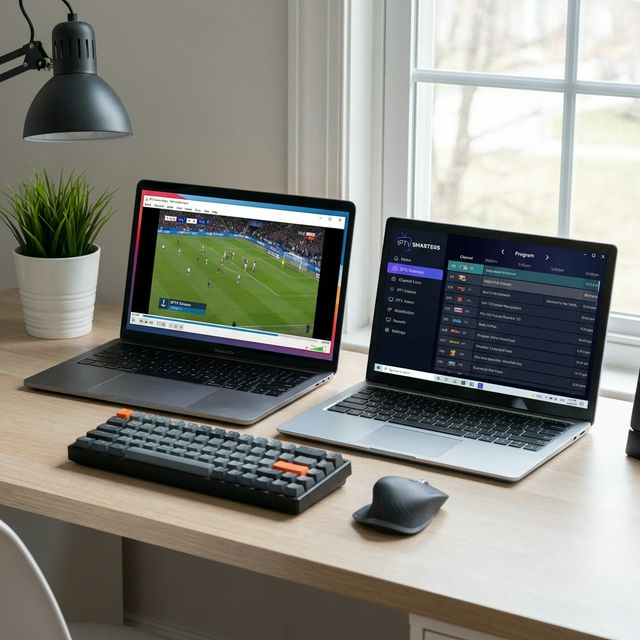
Why Choose a PC or Mac for IPTV?
The computer is very often the quickest way to get started with IPTV: no need to buy another device, no sideloading, no complicated setup. Whether you are on Windows 10/11 ou macOS (Ventura, Sonoma, Sequoia), free and capable apps are available right away.
IPTV on a computer proves ideal in many situations: watching your channels at the office, using a second screen while working, enjoying a large 4K monitor, or trying out an IPTV service before investing in a dedicated box. With an HDMI cable, your PC even turns into a media centre connected to the living room TV.
Quick comparison of PC/Mac solutions
| Application | Windows | Mac | Prix | EPG |
|---|---|---|---|---|
| VLC Media Player | Free | |||
| IPTV Smarters Pro | Free | |||
| MyIPTV Player | Free | |||
| TiviMate (emulator) | ~ | £5.49/an |
Method 1: IPTV via VLC Media Player (Windows & Mac)
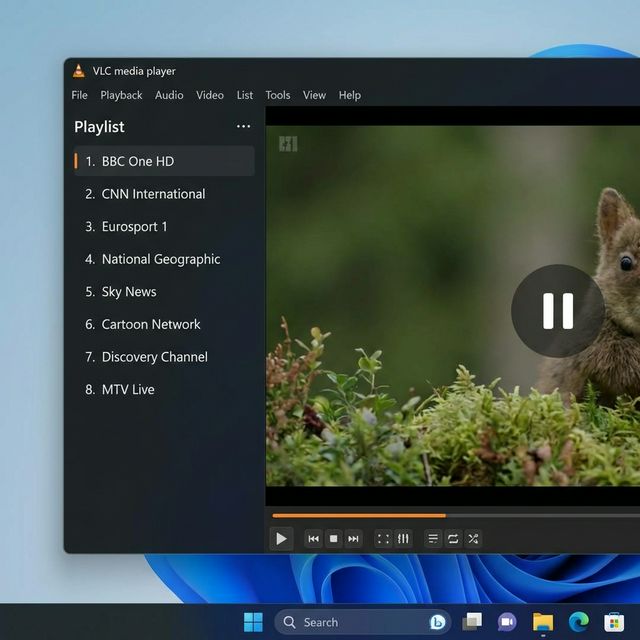
VLC is the most downloaded media player on the planet (3 billion downloads). Free, open source and compatible with almost every video format, it plays M3U files and network streams natively — which makes it the simplest way to get started with IPTV on PC.
Installing VLC + IPTV, step by step
Download VLC
Allez on videolan.org and get the most recent version (3.x+). Install with the default settings. Available on Windows, macOS and Linux.
Get your M3U link
Once your IPTV subscription is taken out, you receive an M3U link (e.g. http://myservice.tv/get.php?username=xxx&password=xxx&type=m3u). Copy this link.
Launch the stream in VLC
Windows : Media → Open Network Stream (Ctrl+N) → paste the M3U URL → Play
Mac : File → Open Network → paste the URL → Open
Switching from one channel to another
The M3U playlist appears in VLC. Double-click a channel to start it. Use View → Playlist (Ctrl+L) to display all available channels and sort them by category.
️ Ideal VLC settings for IPTV
- • Preferences → Input/Codecs → Network caching: 1500 ms (limits the micro-stutters)
- • Preferences → Video → Output: DirectX or OpenGL (depending on the GPU)
- • Preferences → Video → Hardware acceleration: Automatique
- • Preferences → Audio → Module: DirectSound (Windows) or CoreAudio (Mac)
Method 2: IPTV Smarters Pro for PC & Mac
IPTV Smarters Pro is the most widespread IPTV app in the world. Unlike VLC, it offers a dedicated interface with EPG (programme guide), favourites management, sorting by country/genre and API support Xtream Codes. It is available natively on Windows and macOS.
Installing IPTV Smarters Pro
Download the app
Windows : Head to the official iptvsmarters.com site to get the Windows version (.exe). Mac : Available on the App Store or the official site (.dmg).
Logging in via Xtream credentials
On the very first launch, opt for "Xtream Codes API". Enter your username, password et server URL supplied by your IPTV provider.
Setting up the EPG
The EPG loads on its own with the Xtream API. TV programmes display for each channel, with schedules, descriptions and icons. You can also import an external EPG in XMLTV format.
Enjoying the streaming
Browse the categories (UK, Sport, Cinema), add your favourites and enjoy Full HD/4K streaming. The interface stays smooth and the EPG refreshes automatically.
Method 3: MyIPTV Player (Windows 10/11)
MyIPTV Player is a UWP app offered free on the Microsoft Store. It is the most "official" option for Windows, with a modern interface, a built-in EPG and full M3U support. Its major advantage: no third-party installation, everything goes through the Microsoft Store.
Setting up MyIPTV Player
1. Ouvrez le Microsoft Store → Search for "MyIPTV Player" → Install
2. Open the app → Go to Settings (Settings)
3. In "Channel List URL" → paste your URL M3U
4. In "EPG URL" → paste your URL XMLTV (optional but recommended)
5. Click "Refresh" → the channels load with logos and EPG
6. Browse by group or use the search bar to find a channel
MyIPTV Player is particularly well suited to tablettes Surface and touchscreen PCs thanks to its touch-oriented interface. It handles PIP (picture-in-picture), subtitles and 4K on high-resolution displays.
Method 4: TiviMate with an Android Emulator
If you want to use TiviMate — the most complete IPTV player — on your PC or Mac, it is possible via an Android emulator such as BlueStacks 5 ou NoxPlayer. This approach recreates the full Android TV interface on your computer.
Quick installation
- 1. Download BlueStacks 5 on bluestacks.com (Windows & Mac)
- 2. Install BlueStacks then sign in with your Google account
- 3. Open the Play Store in BlueStacks → search for "TiviMate"
- 4. Install TiviMate → add your M3U playlist or Xtream API
- 5. Enjoy TiviMate's full interface with EPG, favourites and recording
️ Requirements for the Android emulator
- • 8 GB of RAM minimum (16 GB recommended)
- • Intel i5/Ryzen 5 processor or higher
- • Virtualisation (VT-x) enabled in the BIOS
- • 10 GB of available disk space
Which Solution to Pick? Our Recommendation
Beginner / Quick test
You simply want to try IPTV quickly
→ VLC Media Player (free, installed in 2 min)
Daily use on Windows
Everyday IPTV with EPG and favourites
→ MyIPTV Player or IPTV Smarters Pro
Mac user
macOS (Ventura, Sonoma, Sequoia)
→ VLC + IPTV Smarters Pro (natively on macOS)
Power user
TiviMate's full interface on PC
→ BlueStacks + TiviMate Premium
Hardware Decoding (Hardware Acceleration) in 4K
On PC as on Mac, decoding 4K streams in H.265 (HEVC) puts an enormous load on the processor if playback stays software-based. To ease the CPU and avoid buffering, always enable hardware decoding (Hardware Acceleration) which harnesses the dedicated GPU:
VLC on Windows
Tools > Preferences > Input/Codecs > Hardware-accelerated decoding: choose "DirectX Video Acceleration (DXVA) 2.0" on Windows 10/11. Then restart VLC.
VLC on macOS
Preferences > Input/Codecs > Hardware decoding: "VideoToolbox". Compatible with Intel and Apple Silicon (M1/M2/M3), for perfectly smooth HEVC decoding.
IPTV Smarters Pro Windows/Mac
Settings > Player > Hardware Decoder enabled. Make sure the graphics card has a recent driver (GeForce Game Ready 535+, Radeon Software 23.5+).
Kodi with PVR IPTV Simple
Settings > Player > Video > Hardware acceleration. Mac: VTB. PC: DXVA2 or D3D11VA. Improves 4K smoothness by 30 to 60%.
With hardware decoding enabled, a MacBook Air M1 plays 4K HEVC at 0% CPU and 30% GPU, with no heat or fan. A Windows laptop with Iris Xe or a GeForce MX 450 does the same. Without acceleration, the same stream takes up 80% of the CPU and sends the fans into overdrive.
Dedicated Optimisations for Windows 11 and macOS Sonoma
Windows 11 (PC)
- • Disable hardware-accelerated GPU scheduling in case of buffering: Settings > Display > Graphics > Change default graphics settings
- • Switch to Game Mode during IPTV playback: frees up 5–10% of CPU for the video
- • HDR mode on Windows automatic in 4K HDR: Settings > Display > HDR > Enable for HDR content
- • Turn off notifications in full screen: Settings > System > Notifications > Focus assist
macOS Sonoma (Mac)
- • Stage Manager disabled in full screen: preserves RAM and GPU
- • Enable Reference Mode on Pro Display XDR for faithful 4K HDR
- • MacBook Pro Cinema mode ProMotion: 120 Hz for fast-moving sport
- • AirPlay to Apple TV : Control Centre > Screen Mirroring to send to the living room TV
Frequently Asked Questions — IPTV on PC & Mac
L'team EzzeTV
IPTV and streaming specialistsAs UK streaming and IPTV experts, our editorial team tests and compares services, apps and devices every day to bring you reliable, up-to-date guides that reflect the reality of the UK market in 2026.
Your PC Is All Set for IPTV!
36,000 channels • Compatible with Windows, Mac & Linux • 1 month at £10.99
Choose a Plan