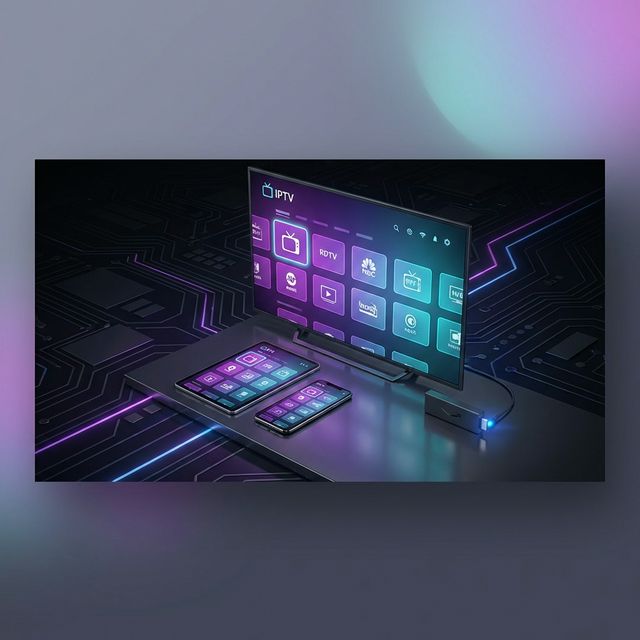
Set Up IPTV on Every One of Your Devices
— Complete Guide 2026
Install your subscription EzzeTV in barely 5 minutes, whatever your device. Easy setup of IPTV Smarters Pro, TiviMate ou VLC on Samsung/LG Smart TVs, Fire TV Stick, Android, iPhone and PC/Mac. Start by choosing your IPTV app, then gather your login details with our dedicated Xtream Codes and M3U guide.
IPTV Subscription Plan
IPTV 12 MONTHS Premium
Activated in 5 min
à peine £4.33/month
or start with 1 month at £10.99
Instant activation as soon as you order. Follow our step-by-step guides to set up IPTV on all your devices in under 5 minutes.
Select Your Device
Detailed tutorials for every platform. Simple installation in a few steps.
Amazon Fire TV Stick
Setup on Fire TV Stick 4K, Lite and recent models
Allow unknown sources
Settings > My Fire TV > Developer options > Unknown sources > Enable
Installer Downloader
Search for "Downloader" in the Amazon store then install it for free
Get the IPTV app
Launch Downloader and enter the URL provided after purchase
Enter your Xtream credentials
Select "Xtream Codes API" then enter your credentials
Samsung / LG Smart TV
Direct installation from the TV store or via USB
Open the TV store
Launch your TV's app store (Smart Hub / LG Content Store)
Find the IPTV app
Type "IPTV Smarters" or "Smart IPTV" in the search bar
Installer l'application
Press Install and wait while it downloads
Enter your Xtream codes
Choose "Login via Xtream Codes API" then enter your details
Box / Android TV
Android TV, Nvidia Shield, Mi Box and all box Android
Open the Play Store
From the home screen, go to the Play Store
Add TiviMate or Smarters
Search for "TiviMate" or "IPTV Smarters Pro" then install
Opt for Xtream Codes mode
Launch the app and select "Xtream Codes" as the method
Enter your credentials
Server, username and password received by email
iPhone / iPad
Compatible with iOS 14+ on iPhone and iPad
Search in the App Store
Search for "IPTV Smarters Pro" on the App Store
Installer l'application
Install the free app (optional in-app purchases)
Create an Xtream profile
Tap "+" then "Xtream Codes API"
Enter your credentials
Enter the server and your credentials received by email/WhatsApp
PC / Mac
Windows and macOS with VLC or a dedicated app
Download VLC
Go to videolan.org and download VLC for free
Open a network stream
From Media Menu > Open Network Stream (Ctrl+N)
Paste your M3U link
Insert the M3U link available in your customer account
Enjoy the channels
The channels appear automatically in VLC
MAG Box / Formuler
MAG 322, 324, 420, Formuler Z8, Z10
Open the settings
Select Settings from the main menu
Go to Portal/Server
Go to the portal/server section
Set up Portal 1
Portal 1 URL: enter the MAC portal address provided
Restart the MAG box
Save then reboot to load the channels
The Best IPTV Apps
The ideal apps to make the most of your subscription EzzeTV with your Xtream codes and M3U links
IPTV Smarters Pro
RecommendedThe most downloaded and most complete IPTV app. Modern interface with built-in EPG, recording, catch-up TV and multi-profile management. Compatible with Xtream Codes API and M3U link.
TiviMate
RecommendedPremium IPTV app with the most polished interface on the market. Free version available, Premium recommended for advanced features.
VLC Media Player
A free, universal tool for opening your M3U links on a computer. Lightweight, responsive and compatible with all formats.
Smart IPTV
Native app for Samsung and LG Smart TVs. Easy installation from the TV store. Interface designed for the remote control.
GSE IPTV
A popular alternative on iOS and Android. Customisable interface with EPG, parental controls and multi-format support.
Questions Frequent - Installation IPTV
Solutions to common IPTV installation and setup issues
Why does IPTV Smarters Pro refuse to connect with my Xtream codes?
Check that you've selected 'Login via Xtream Codes API' (and not M3U URL). Make sure you enter everything correctly: the server (without http://), the username and the password received by email. If the problem persists, test your internet connection and contact our 24/7 support via WhatsApp.
How do I install IPTV on a Samsung Smart TV without using the Play Store?
Samsung Smart TVs run on Tizen OS. Download IPTV Smarters Pro, Smart IPTV or SS IPTV from the Samsung App Store (Smart Hub). If the app is unavailable in your region, use a USB stick with the APK or plug a Fire TV Stick into your Samsung TV.
Downloader isn't working on my Fire TV Stick, what should I do?
Check that you've enabled 'Apps from unknown sources': Settings > My Fire TV > Developer options > Apps from unknown sources > Enable. If Downloader still won't install, search specifically for 'Downloader by AFTVnews' in the Amazon store.
What's the difference between Xtream codes and an M3U link?
Xtream codes (server, login, password) provide a full EPG, organised VOD and catch-up TV in IPTV Smarters/TiviMate. The M3U link is a simple URL compatible with VLC but with fewer features. We recommend Xtream Codes for a better experience.
How do I install TiviMate on a Fire TV Stick?
TiviMate isn't on the Amazon Store. Use Downloader: (1) Enable unknown sources, (2) Install Downloader, (3) Enter the TiviMate APK URL provided after purchase, (4) Install the APK, (5) Open TiviMate and add the playlist with your Xtream codes.
How long does installation take?
Average time: 3-5 minutes depending on the device. Fire TV Stick/Smart TV: 5 min, iOS/Android mobile: 3 min, PC with VLC: 2 min. Our detailed video guides walk you through step by step. Support available 24/7 if needed.
Do I need to root/jailbreak my device to install IPTV?
No, not at all! Our IPTV apps (Smarters Pro, TiviMate, VLC) are 100% legal and require no Android root or iOS jailbreak. Official installation from the App Store/Play Store or via Downloader on Fire Stick.
Can I install on several devices with a single subscription?
Premium/4K subscription: 1 simultaneous screen — install it on several devices but watch on only 1 at a time. Family Pack: 2-4 simultaneous screens depending on the plan. Unlimited installation; the limit applies only to simultaneous viewing.
How do I set up parental controls on IPTV Smarters Pro?
In IPTV Smarters Pro: go to Settings > Parental Controls > Enable. Set a 4-digit PIN code. You can lock categories (adult, violence) and specific channels. Ideal for protecting children on the Family Pack.
What should I do if the channels won't start / black screen?
Common causes: (1) Internet connection too weak (minimum 10 Mbps in HD, 25 Mbps in 4K), (2) Server momentarily overloaded (our Anti-Freeze switches over automatically), (3) Outdated app (update it), (4) Expired codes (check your subscription end date). Contact support if the problem persists.
Need extra help?
Message our supportTested and approved by our team
- Test date: 8 February 2026
- Device : Fire TV Stick 4K, Samsung QE55Q70B, iPhone 15 Pro, MacBook Pro M3
- Connexion : Bouygues Fibre — 400 Mbps descendant
- ️ Test duration: Installation on 6 different devices
- Result: Average installation time: 4 min. Smarters Pro + TiviMate + VLC all up and running. Xtream codes validated in < 30s on each device
Need Help Installing?
Our support team is available 24/7 to help you set up your IPTV.
Understanding IPTV Formats and Protocols
To get the most out of your IPTV service, it helps to master a few basic technical concepts.
M3U / M3U8
A playlist file format containing the list of all your IPTV channels with their streaming URLs.
EPG (Electronic Programme Guide)
An electronic TV guide showing channel schedules with programme times and descriptions.
Xtream Codes API
A connection protocol offering a smoother experience than a simple M3U file, with category management and advanced features.
HLS (HTTP Live Streaming)
Adaptive streaming technology that automatically adjusts video quality to your bandwidth.
Buffering
A temporary interruption of playback while data is downloaded. Fixed by optimising your internet connection.
MPEG-TS
A video container format used for live broadcasting, ensuring minimal latency.
Dedicated Guides by Device
Check our detailed guides for step-by-step installation on each of your devices.
Install IPTV on Fire Stick
Complete step-by-step guide to install and set up IPTV on the Amazon Fire TV Stick 4K.
View the guideInstall IPTV on Samsung and LG Smart TVs
Full setup of IPTV Smarters Pro and Smart IPTV on Samsung Tizen and LG webOS.
View the guideInstall IPTV on Android
Complete guide for Android TV, Nvidia Shield, Android Box and smartphones with TiviMate and IPTV Smarters Pro.
View the guideInstall IPTV on Mac, PC and Windows
Setup of VLC, Kodi, MyIPTV Player and IPTV Smarters Pro on Windows 11, macOS and Linux.
View the guideComparison of Compatible IPTV Devices in 2026
Choosing the right device makes installation easier and ensures the best streaming quality. Here is our comparison table based on real tests in HD, FHD and 4K HDR.
| Device | Difficulty | 4K HDR | App recommended | Ideal for |
|---|---|---|---|---|
| Fire TV Stick 4K Max | Facile | HDR10+ / Dolby Vision | TiviMate / Smarters Pro | All households, excellent value for money |
| Samsung Tizen Smart TV | Facile | HDR10+ | Smart IPTV / IPTV Smarters Lite | Installation without an external box |
| LG webOS Smart TV | Facile | Dolby Vision | SS IPTV / IPTV Smarters Lite | Premium LG OLED TV |
| Nvidia Shield TV Pro | Moyen | 4K AI Upscaling | TiviMate Premium / Kodi | Film buffs, advanced media centre |
| Android Box (Xiaomi, Mi) | Facile | HDR10 | TiviMate / Smarters Pro | Small budget, alternative to the Fire Stick |
| iPhone / iPad | Very easy | Dolby Vision (recent models) | IPTV Smarters Pro / GSE | Mobility + AirPlay |
| Windows PC and Mac | Very easy | (according to screen) | VLC / IPTV Smarters Pro | IPTV alongside work |
| MAG Box / Formuler | Moyen | (according to model) | Native MAC portal | Experienced MAG users |
| Apple TV 4K | Moyen | Dolby Vision HDR | GSE Smart IPTV / iPlayTV | Apple ecosystem, AirPlay |
For beginners, the Fire TV Stick 4K Max remains the best balance of price, quality and simplicity in 2026. Recent Samsung and LG Smart TVs allow installation without any extra hardware.
🧭 Which Installation Method to Choose for Your Situation
There are three main methods for installing an IPTV service. Each suits a specific use depending on your hardware, your technical level and the complexity of your home setup.
App Store (the simplest)
You download the app directly from your device's store (App Store, Google Play, Samsung Apps, LG Content Store, Amazon App Store), then you enter your Xtream Codes credentials.
Ideal for : iPhone, iPad, recent Smart TV and Fire TV. Difficulty: 1/5.
Sideloading with Downloader
On Fire TV Stick and some Android boxes, the Downloader app fetches an official APK via a URL. This method is used to install TiviMate, which is missing from the Amazon store.
Ideal for : Fire Stick, Nvidia Shield and Android Box. Difficulty: 2/5.
MAC Portal / Direct M3U Link
On Smart IPTV (Samsung/LG), MAG Box, Formuler or VLC, you provide your device's MAC address or a direct M3U link to the tool. A more technical method but very stable.
Ideal for : Samsung/LG Smart TV (non-Android), MAG and VLC. Difficulty: 3/5.
Our quick tip
For 9 people out of 10, the App Store + Xtream Codes API method remains the fastest, most reliable and least risky. Keep sideloading for cases where the app isn't natively available (TiviMate on Fire TV), and the MAC portal for older Smart TVs without a working store.
7 Settings to Apply After Installation
A clean installation is already good. An installation optimised for 4K without interruptions is even better. Here are the settings to apply straight away to make the most of your EzzeTV subscription.
1. Enable hardware decoding (Hardware Decoder)
In the advanced settings of IPTV Smarters Pro or TiviMate, enable "Hardware Decoder" or "MediaCodec". The GPU then takes over from the CPU to decode H.265/HEVC, reduces heat and removes 90% of buffering in 4K.
2. Adjust the buffer size
The default buffer (2 seconds) is too low for 4K. Set it to 5 seconds in HD and 8 seconds in 4K. You gain stability at the cost of a slightly slower start.
3. Force the output resolution
On Fire Stick and Android boxes, go to Settings > Display > Resolution and set 1080p or 2160p in native mode. Avoid "Auto" mode, which causes HDR/SDR conflicts.
4. Favour 5 GHz Wi-Fi or Ethernet
2.4 GHz is congested and caps at 25-30 Mbps in practice. Connect to the 5 GHz network if the router is nearby, otherwise run an Ethernet cable — the best option for stable 4K.
5. Add an XMLTV EPG source
Without EPG, you only have the channel list. With EPG, you can see the current programme, schedules and plan recordings. TiviMate handles several XMLTV sources at once.
6. Organise favourites and hide unnecessary categories
Create personalised groups (Family, Sport, Cinema, Kids) and hide unused categories to lighten the interface and smooth navigation with the remote.
7. Update the app every month
Updates fix HEVC playback bugs, improve Chromecast/AirPlay compatibility and add new EPG options. Enable automatic updates.
L'team EzzeTV
IPTV and streaming specialistsAs streaming and IPTV specialists in the UK, our editorial team tests and compares services, apps and devices every day to bring you reliable, up-to-date guides that reflect the reality of the French market in 2026.